Figuring out laptop overheating how to fix became my mission when mine started shutting down mid-movie and the fan sounded like a hair dryer. I burned my knee once, which was the final straw. The good news is that most overheating has embarrassingly simple causes, and you can fix nearly all of them at home with zero technical skill. These eleven fixes took my laptop from scorching to barely warm.
1. Blast the Dust Out of the Vents
Dust is the number one cause of laptop overheating, because it slowly chokes vents and fans until hot air has nowhere to go. Power the laptop off, grab a can of compressed air, and fire short bursts into every vent. Hold the can upright so no liquid sprays out.
Do this outside, because the dust cloud is genuinely shocking the first time. I pulled what looked like a small gray hamster from my laptop’s vent. Repeat every three to six months, and never use a vacuum cleaner, since static can damage internal components.
2. Stop Using It on Beds and Couches
Soft surfaces are silent killers for laptop cooling, because blankets smother the intake vents underneath. Your laptop ends up recycling its own hot air, and temperatures climb fast. A hard table, a desk, or even a large book underneath makes an immediate difference.
I worked from bed every evening and wondered why the fan screamed, then one week on a desk fixed it. If you must use the laptop on soft furniture, prop the back edge on a book for an air gap. Airflow underneath matters more than most people realize.

3. Get a Cheap Cooling Pad
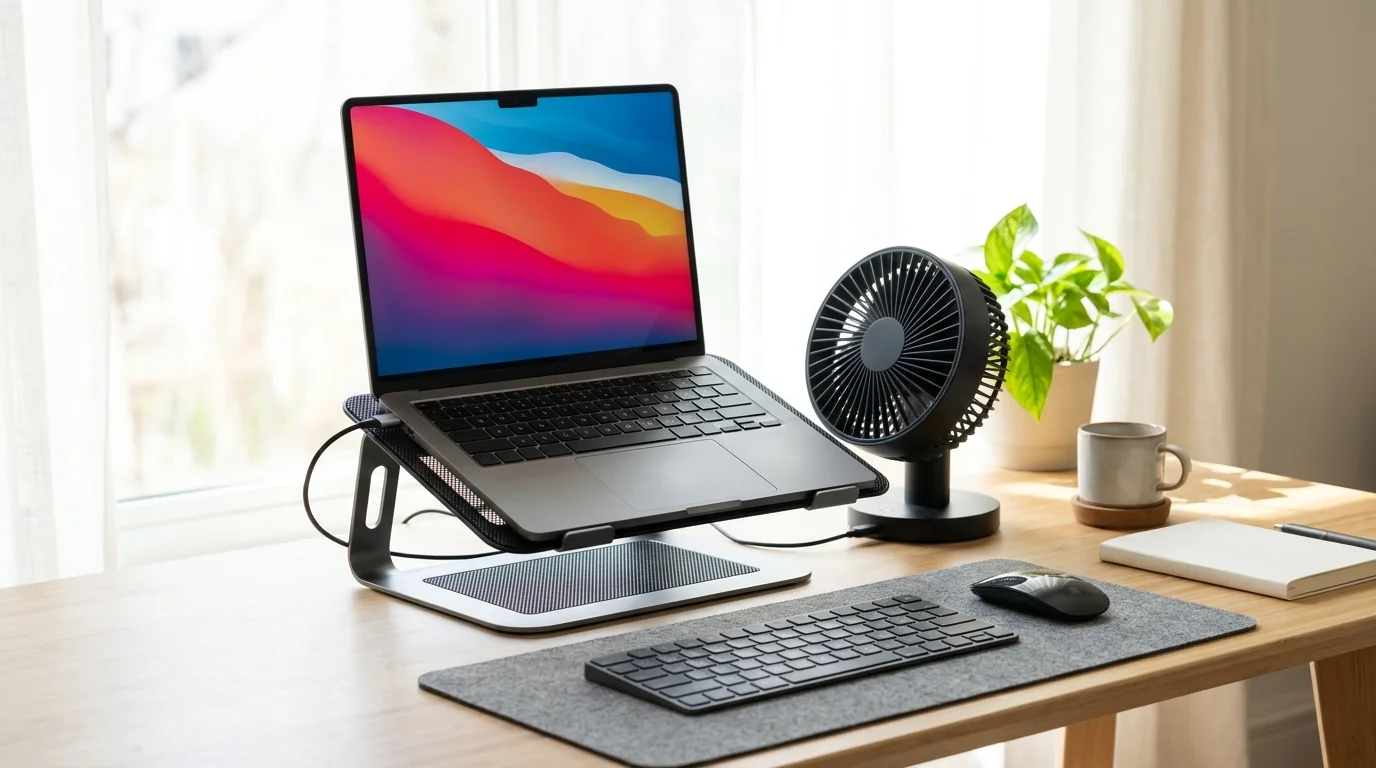
A cooling pad is a stand with built-in fans that blows cool air into your laptop’s underside vents. Decent ones cost fifteen to thirty dollars, plug into USB, and can drop temperatures by five to ten degrees. Look for a metal mesh surface and adjustable fan speed.
Mine paid for itself the first summer, when my laptop survived a heatwave without one shutdown. The elevation also improves your typing angle, a nice bonus. It will not fix a dust-clogged machine alone, but combined with cleaning it works wonders.
4. Close Heavy Programs and Browser Tabs
Every open tab and background program makes your processor work harder, and harder work means more heat. Chrome with thirty tabs plus a video call is basically a stress test. Close what you are not using and watch the fan calm down within minutes.
An ad blocker like uBlock Origin helps too, because ads and auto-playing videos are surprisingly heavy. I cut my idle temperature by eight degrees just by closing tabs I was hoarding. Bookmark them instead; your laptop will run cooler and the battery will last longer.
5. Find Out What Is Hogging the CPU
Sometimes one rogue program eats your processor alive while you notice nothing but heat. Press Ctrl + Shift + Esc to open Task Manager, click the CPU column to sort by usage, and look for anything above twenty percent for no good reason. A stuck updater or runaway browser tab is often the culprit.
Right-click the offender and end the task, then watch temperatures drop in real time. I once found a printer utility using forty percent of my CPU around the clock for no reason. If the same program misbehaves repeatedly, uninstall it or find a lighter alternative.

6. Update Your Drivers and BIOS
Outdated drivers can make fans behave badly, spin at the wrong speeds, or fail to respond to temperature changes correctly. Visit your laptop maker’s support page, enter your model number, and install the latest chipset and BIOS updates. These updates often include improved fan curves and thermal management.
BIOS updates sound scary but are straightforward on modern laptops; just keep the charger plugged in and do not touch anything during the process. A BIOS update fixed my fan running at full blast constantly, which I had assumed was a hardware problem. Check for updates twice a year to stay current.
7. Switch to a Cooler Power Plan
Windows power plans control how hard your processor works, and High Performance keeps it running hot even for light tasks. Open Settings, go to System, then Power, and choose Balanced or Best power efficiency. Your laptop will still handle everyday work fine.
You can also cap the maximum processor state at ninety percent in advanced power settings, which barely affects speed but cuts heat noticeably. I game on Balanced now and cannot tell the difference, except the laptop no longer doubles as a space heater. Save High Performance for when you truly need it.
8. Replace the Thermal Paste
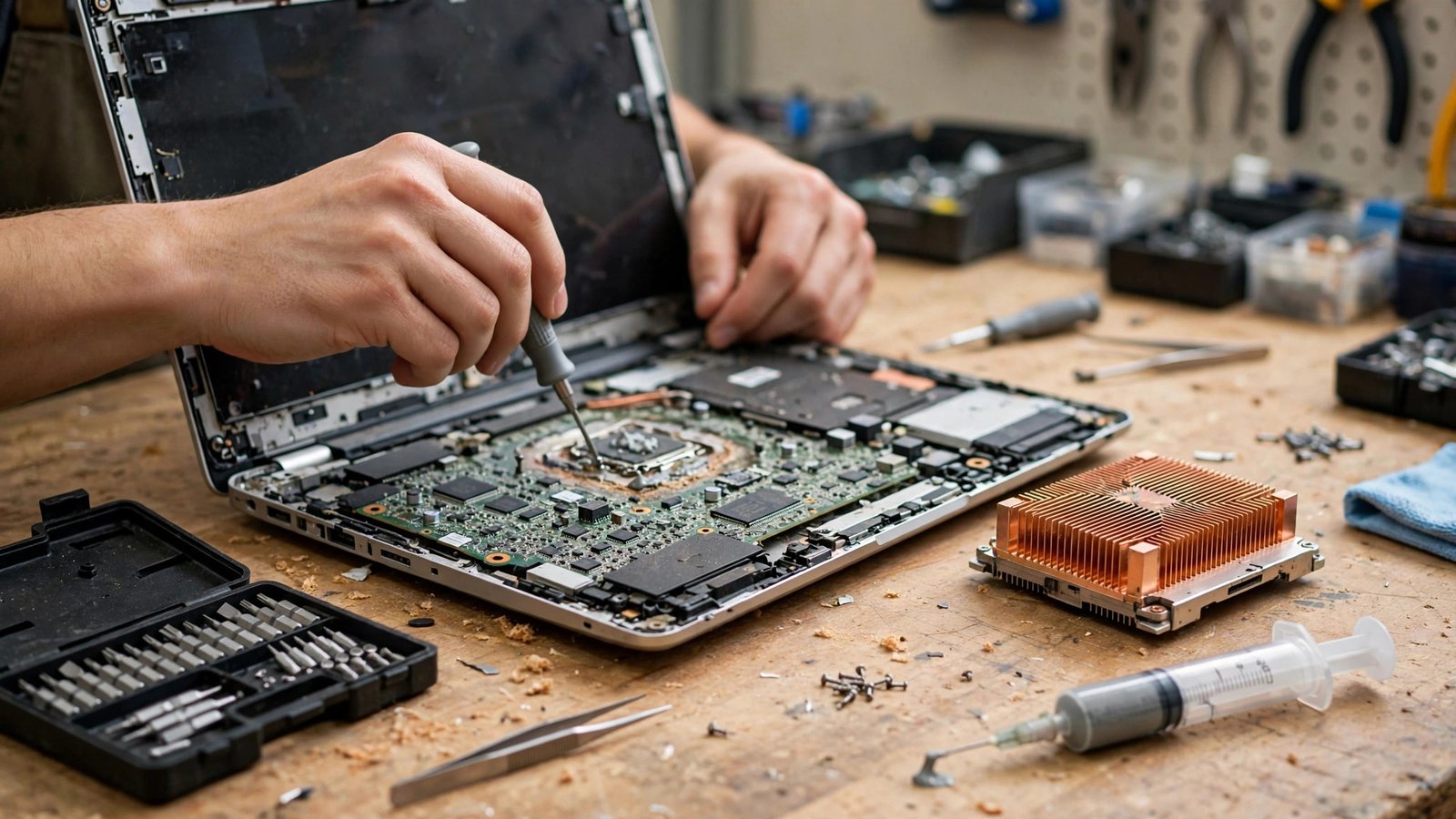
Between your processor and its heatsink sits thermal paste that transfers heat away, and after several years it dries out. Replacing it can drop temperatures by ten to fifteen degrees on an old laptop. This involves opening the machine, so only try it if you are comfortable with a screwdriver.
Watch a teardown video for your exact model first, buy quality paste like Arctic MX-4, and photograph each step so reassembly is easy. I revived a six-year-old laptop this way and it felt new again. If opening the laptop voids a warranty you care about, skip this one.
9. Cool Down the Room Itself
Laptops can only cool themselves with surrounding air, so a hot room guarantees a hot laptop. Above eighty degrees, even a healthy machine struggles. A small desk fan pointed at the laptop, an open window, or moving away from direct sunlight helps more than you would think.
Never leave a laptop in a parked car or in direct sun through a window, because internal temperatures spike dangerously in minutes. During one heatwave, moving my desk away from a sunny window dropped my laptop’s temperature six degrees. Environment matters as much as hardware.
10. Trim Startup and Background Apps
Apps launching at startup and running in the background keep your processor busy from the moment you log in. Open Task Manager’s Startup tab and disable the heavy hitters, then check background app permissions in Settings. Anyone asking about laptop overheating how to fix should start here, because fewer idle processes means a cooler machine.
This overlaps nicely with speed tweaks, so you get two benefits from one chore. After trimming mine, the laptop idled ten degrees cooler and the fan stayed silent while browsing. Revisit both lists every few months, because updates love re-enabling themselves.
11. When DIY Is Not Enough: Laptop Overheating How to Fix With a Pro
If you have tried everything here and the laptop still overheats, the problem may be a dying fan, a swollen battery, or a loose heatsink. These need professional hands and real replacement parts. A reputable local repair shop can diagnose most cooling failures for a modest fee.
Get a quote before committing, because on very old machines the repair can cost more than the laptop is worth. Back up your files before handing it over. Knowing when to stop tinkering and call an expert is its own kind of fix, and there is no shame in it.
FAQs
How hot is too hot for a laptop?
Most laptops run fine between 50 and 80 degrees Celsius under load, and start throttling or shutting down around 90 to 100. Use a free tool like HWMonitor to check your actual temperatures. If yours regularly crosses 90 during light use like web browsing, something is wrong and needs attention.
Can overheating permanently damage my laptop?
Yes. Anyone looking into laptop overheating how to fix should know chronic heat shortens battery life, warps solder joints over time, and can kill a hard drive. Modern processors protect themselves by slowing down, but the battery has no such protection. Fixing heat early genuinely extends your laptop’s life.
Is it normal for a laptop to get hot while gaming?
Yes, gaming pushes the processor and graphics chip hard, so warmth is expected. What is not normal is sudden shutdowns, extreme fan noise that never stops, or heat that burns to touch. If gaming heat worries you, a cooling pad and capped frame rates help a lot.
Why does my laptop overheat on a bed but not a desk?
Beds and couches block the air vents on the bottom of the laptop, trapping hot air underneath with nowhere to escape. A desk lets air flow freely around the machine. This is the simplest overheating cause there is, and switching surfaces fixes it instantly for many people.
How often should I clean my laptop’s vents?
Every three to six months is a good rhythm for most homes, and more often if you have pets, since fur clogs vents fast. A quick blast of compressed air takes two minutes. If you have never cleaned yours and the laptop is over a year old, do it today.
Conclusion
This is my full playbook for laptop overheating how to fix at home. Work through the list from top to bottom and your laptop should run noticeably cooler by tonight. Did any of these surprise you?