Learning how to speed up an old laptop saved me from buying a new one, because mine took ten minutes just to open a browser. I was ready to spend $800 on a replacement when a tech-savvy friend showed me a few free fixes. Within one weekend, my ancient machine went from painful to perfectly usable. These are the twelve tricks that worked, and every single one costs nothing.
1. Uninstall Programs You Never Use
Most old laptops carry programs nobody asked for, and each one nibbles at your memory and disk space. Open Settings, head to Apps, and sort by size so the biggest offenders appear first. Trial antivirus software, game launchers you opened once, and mystery manufacturer utilities are all fair game.
I found fourteen programs I had not touched in three years, and removing them freed nearly 20 GB overnight. The next boot felt noticeably snappier, which surprised me for such a simple chore. Leave drivers and Microsoft-published apps alone, but if a program looks like bloat, it almost always is.
2. Stop Apps From Launching at Startup
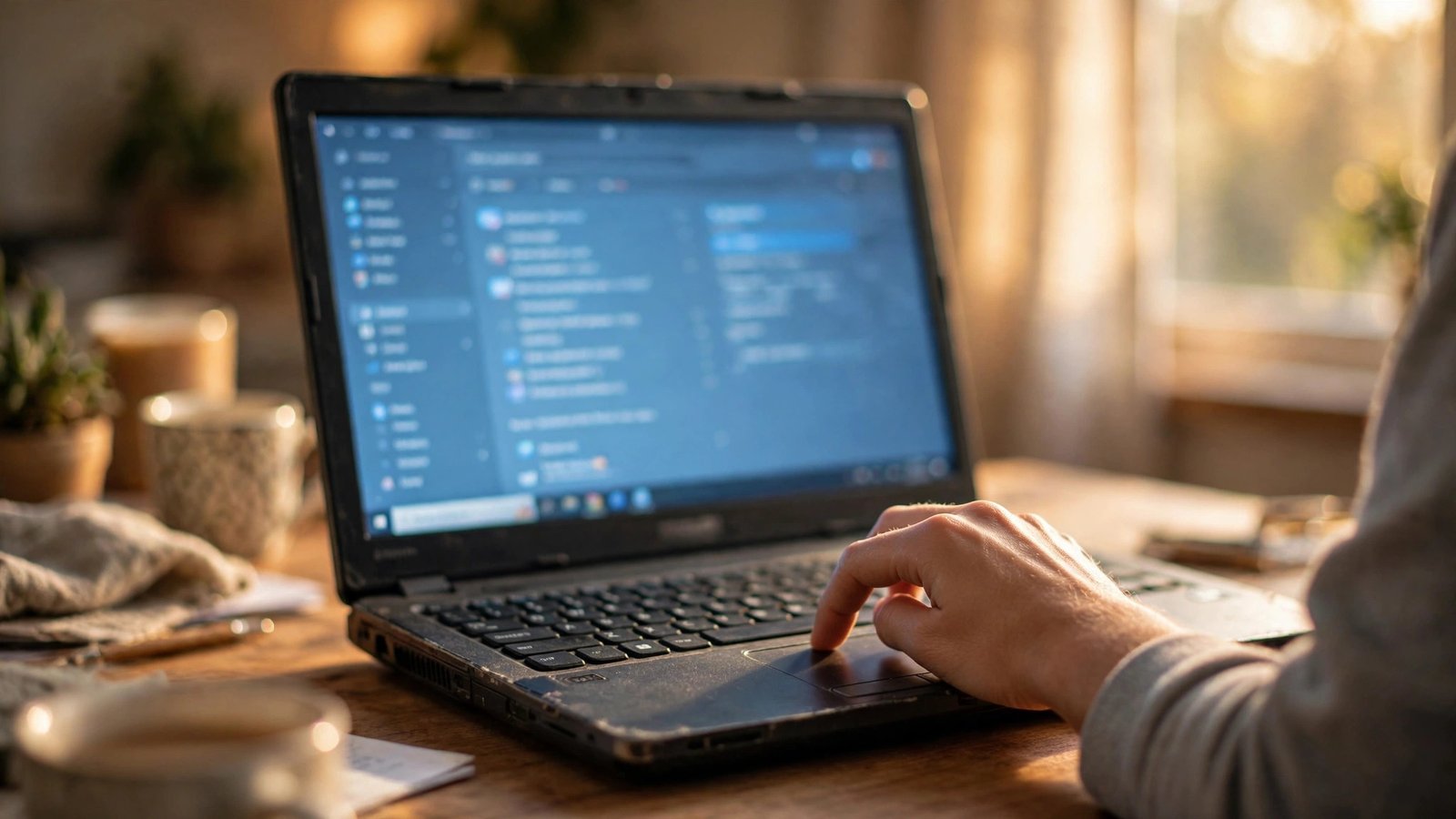
Every app that launches at startup adds seconds to boot time and keeps chewing memory all day. Press Ctrl + Shift + Esc to open Task Manager, click the Startup apps tab, and check the impact column. Anything marked High that you do not need at login can be disabled instantly.
Spotify, Discord, Adobe updaters, and cloud storage apps love to autostart. Disabling them does not uninstall anything, so you can still open each app manually whenever you want. My boot time dropped from four minutes to under ninety seconds after trimming my startup list to six.
3. Turn Off Fancy Visual Effects
Windows loves animations, transparent windows, and shadow effects, but your old processor pays for every one. Search for Adjust the appearance and performance of Windows and choose Adjust for best performance to switch them all off at once. The interface will look plainer, like classic Windows, but feel much faster.
If the stripped-down look bothers you, turn back just two things: smooth screen fonts and thumbnail previews, which cost almost nothing. Everything else, the sliding menus and fading tooltips, is pure decoration your aging hardware does not need. This change made my old laptop’s menus open instantly instead of stuttering.
4. Run Disk Cleanup
Years of use leave gigabytes of temporary files and cached data sitting on your drive for no reason. Type Disk Cleanup into the Start menu, pick your main drive, and let it scan. Check every box, then click Clean up system files for big wins like old Windows update packages.
My first cleanup recovered 34 GB of update files Windows had kept just in case. The tool is built in and safe, and it is the simplest answer to how to speed up an old laptop. Run it every few months.

5. Defragment a Spinning Hard Drive
If your laptop still has a spinning hard drive instead of an SSD, its files are probably scattered in fragments. That forces the drive head to dance around just to read a single file, slowing everything down. Search for Defragment and Optimize Drives and run it.
The process can take an hour, so start it before dinner and let it work unattended. One warning: never defragment an SSD, because it wears the drive out for zero benefit. This trick is strictly for old mechanical drives.
6. Scan for Malware
Hidden malware and browser hijackers can turn a decent laptop into a sluggish mess while mining crypto or showing ads. Run a full scan with Windows Security, which is free and already installed, then follow up with the free Malwarebytes for a second opinion. Each catches things the other misses.
A friend’s dying laptop was running three adware programs, and removing them fixed it completely. Run scans overnight since a full scan takes a while, and quarantine everything found. If your laptop suddenly slowed for no clear reason, malware is worth ruling out first.
7. Update Windows and Your Drivers
Skipped updates do more than leave you vulnerable, because Microsoft and driver makers regularly ship performance fixes too. Go to Settings, then Windows Update, and install everything pending, then restart even if it nags you twice. Graphics and chipset drivers from your laptop maker’s website can add another noticeable boost.
I ignored updates for eight months and wondered why video calls stuttered, until one update round fixed it. Set updates to install automatically overnight so you never fall behind. An up-to-date system runs smoother than a neglected one every time.
8. Switch to a Lightweight Browser
Chrome is a notorious memory hog, and on an old laptop with 4 GB of RAM, ten tabs can bring the machine to its knees. Try Firefox, Brave, or Edge, which all use less memory for the same pages. Import your bookmarks and give the new browser a full day.
I switched to Brave and got back almost a gigabyte of RAM my old laptop desperately needed. Install an ad blocker like uBlock Origin too, because ads and trackers are among the heaviest things a browser loads. Fewer heavy tabs means a faster laptop, simple as that.
9. Turn Off Background Apps
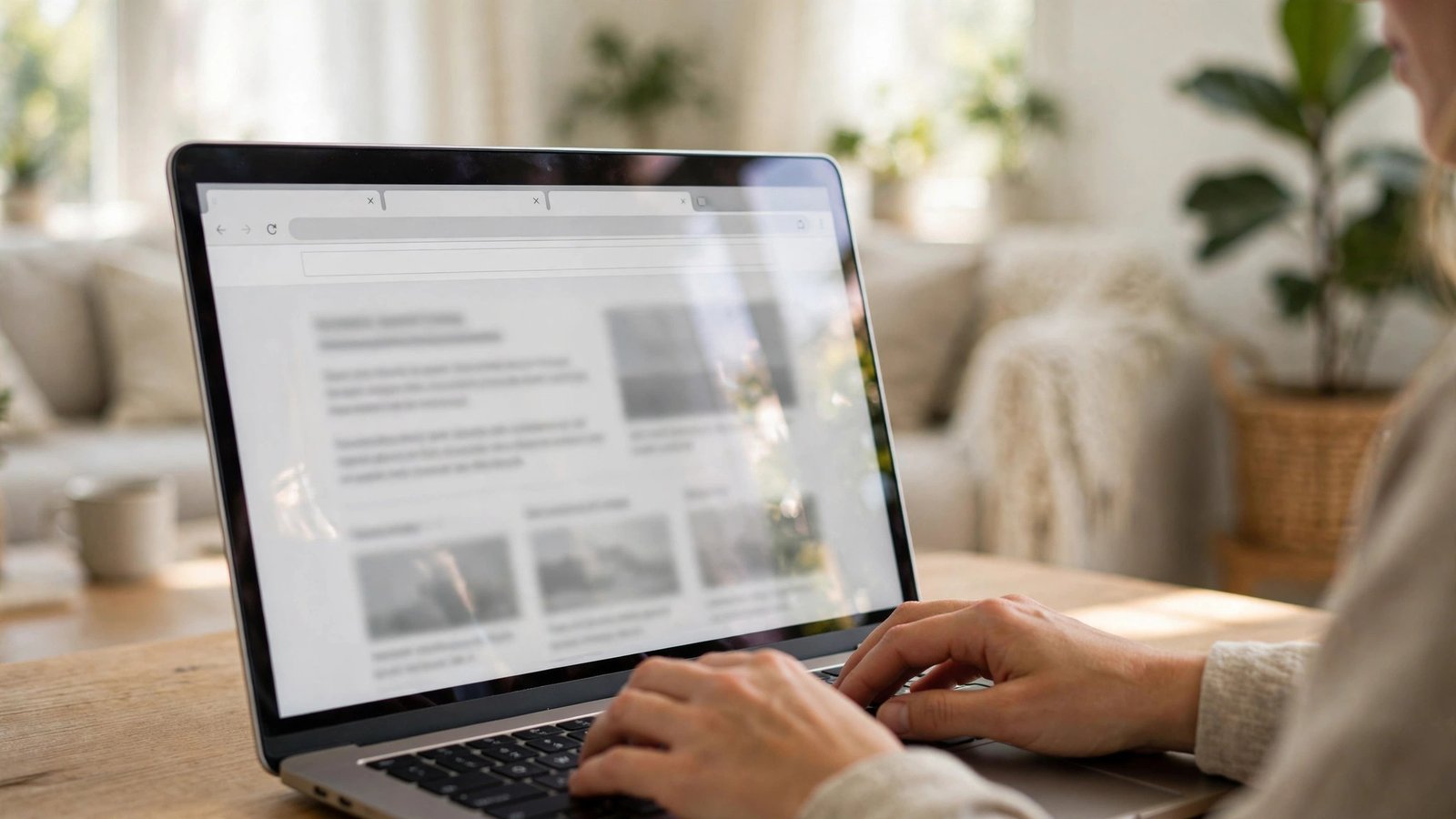
Dozens of apps run in the background even when you never open them, quietly sipping CPU and memory. In Settings, go to Apps, then Installed apps, click the three dots on rarely used apps, and set background permission to Never. Weather widgets and game services are prime candidates.
Unlike startup apps, these keep waking up all day instead of just at boot. After I locked down background permissions, my laptop’s fan finally stopped screaming during web browsing. Check this list twice a year, because updates love re-enabling background access quietly.
10. Declutter the Desktop
A desktop buried in icons forces Windows to redraw and track each one, which genuinely slows an old machine. Move documents into folders, delete screenshots and installers you will never open, and keep fewer than twenty icons visible.
This sounds too simple to matter, but my desktop held over 200 files and cleaning it made right-click menus open instantly. Empty the Recycle Bin too, because deleted files still occupy disk space until you do. Small messes pile up on old hardware faster than you would expect.
11. Reset Windows for a Fresh Start
When nothing else fixes years of accumulated junk, a fresh Windows reset wipes the slate clean while keeping your personal files. Go to Settings, then Recovery, and choose Reset this PC with the Keep my files option. It reinstalls Windows and removes every program, killing bloat at the root.
Back up anything precious first anyway, because Keep my files is reliable but not infallible. The process takes one to two hours, mostly unattended, and the result feels like unboxing the laptop again. It is the closest thing to a free hardware upgrade.
12. Clean the Fans and Vents: How to Speed Up an Old Laptop Physically
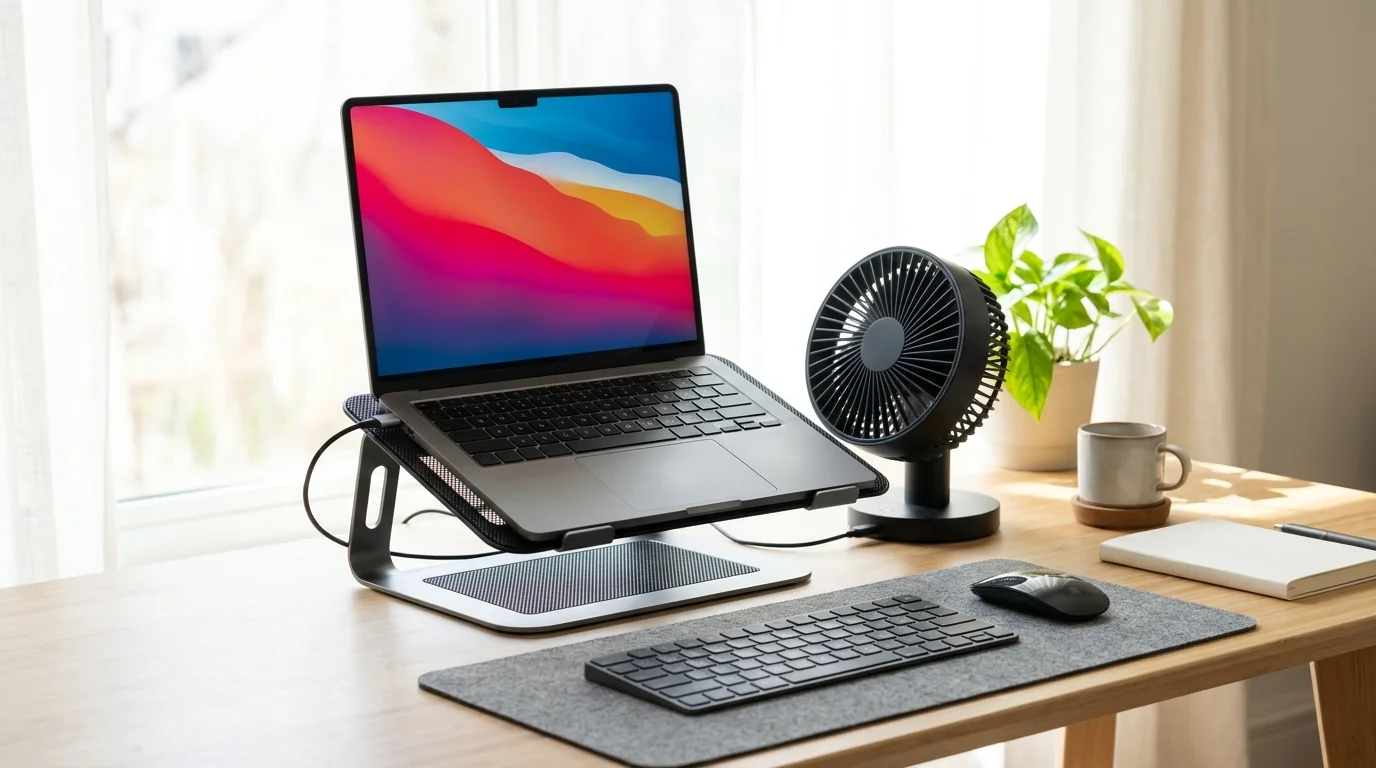
Dust-clogged vents make your laptop run hot, and hot processors deliberately slow themselves down to avoid damage. Power the laptop off, then blast the vents with short bursts from a can of compressed air, holding the can upright. You will be amazed, and slightly disgusted, by what flies out.
After cleaning mine, the fan ran quieter and the processor stopped throttling during video calls. Do this outside if you can, and never use a vacuum cleaner, which creates static that can fry components. A five-minute cleaning every six months keeps heat, and slowdowns, from creeping back.
FAQs
How long does it take to speed up an old laptop with these free fixes?
Most people learning how to speed up an old laptop finish the software fixes in one focused afternoon, about two to three hours including scans and updates. The defrag and Windows reset take longer but run unattended, so you can walk away. You will usually feel the difference the same day, especially after trimming startup apps and uninstalling bloat.
Will these tricks work on a Mac too?
Many will, especially uninstalling unused apps, limiting login items, and cleaning dust from the vents. Macs do not need defragmenting or Disk Cleanup, and macOS handles updates differently. The core idea still applies: less junk running means a faster machine, no matter which logo sits on the lid.
Is it safe to disable startup programs?
Yes, for almost everything. Disabling a startup entry only stops the app from launching at boot; the program stays installed and works fine when you open it manually. Leave your antivirus enabled, plus anything related to audio or the trackpad. When in doubt, search the program name before disabling it.
Should I defragment an SSD?
No, never defragment a solid-state drive. SSDs have no moving parts, so fragmentation does not slow them down, and defragging just wears out the memory cells for zero benefit. Windows knows this and will not defrag an SSD during normal optimization. Only run defrag on old mechanical hard drives.
When is an old laptop truly beyond saving?
If the machine is over ten years old, has less than 4 GB of RAM that cannot be upgraded, or the battery and charger both fail, free software tricks can only do so much. Watch for failing hard drives with clicking sounds and back up immediately. At that point, a refurbished newer laptop is the smarter spend.
Conclusion
That is my full playbook for how to speed up an old laptop, and mine still runs fine today. Start with the quick wins like startup apps and uninstalls, then work down the list on a lazy weekend. Which trick made the biggest difference on your machine?