Wondering whether your phone needs an update is easy once you know the signs, and I learned them the hard way when my apps started crashing one by one. I blamed the apps for weeks before I checked my software version.
It was months out of date, and one update fixed everything. These 12 signs tell you it is time, plus how to update safely.
1. Your Phone Needs an Update When Apps Keep Crashing
Apps are built for recent software, so when your phone falls behind, apps start misbehaving. If several apps crash, freeze, or refuse to open, an outdated system is the most likely cause. Check for a software update before you blame the apps.
Developers stop testing their apps on old software versions, so the crashes get worse over time. A single update often fixes a whole batch of misbehaving apps at once. The update is the first fix to try, not the last.
2. The Battery Drains Much Faster Than Usual
A sudden drop in battery life often means your software is struggling. Old versions can run background processes inefficiently, and updates regularly include battery improvements. If your phone barely lasts half a day, check for an update first.
Before you update, check which apps use the most battery in Settings, because one rogue app can also be the culprit. If the list looks normal, the software itself is the suspect. A fresh system version usually calms the drain within a day or two.
3. Your Phone Feels Slow or Laggy
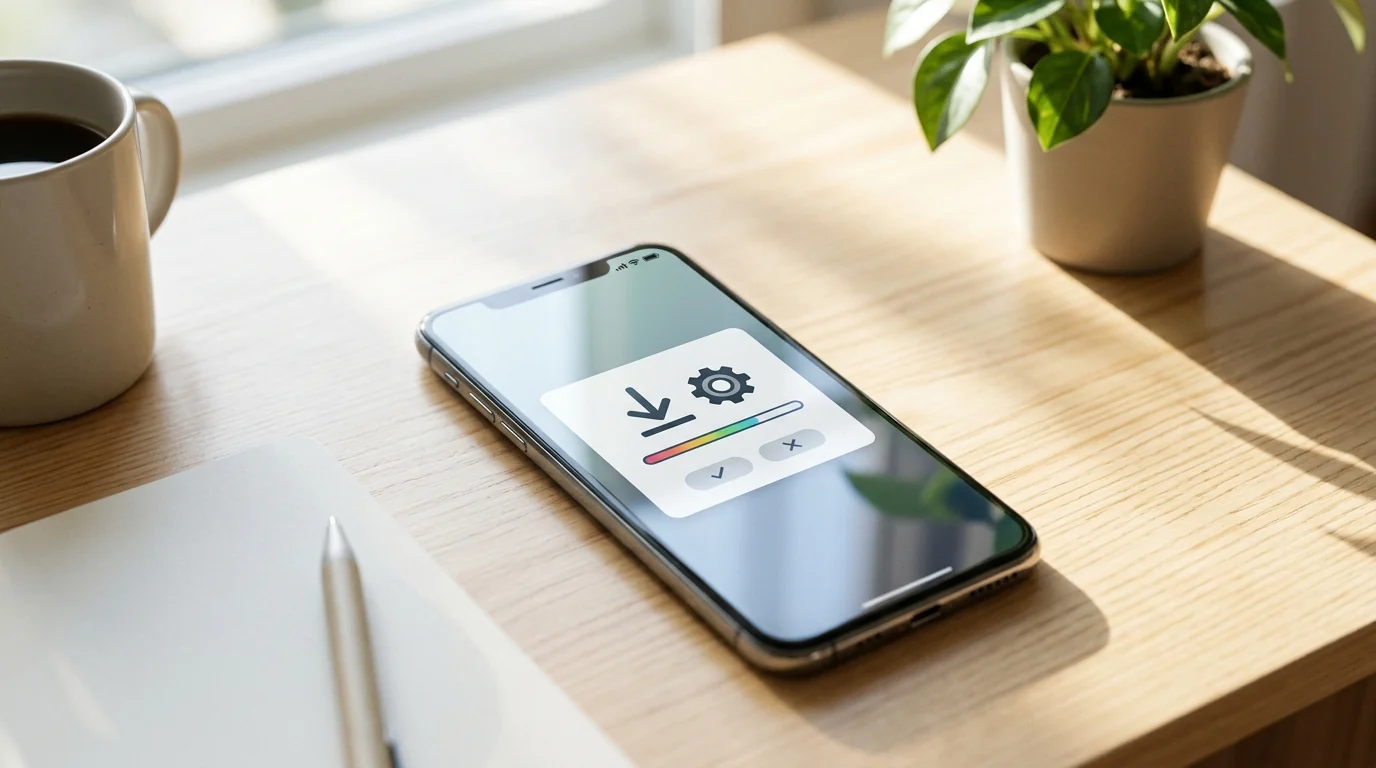
Menus that stutter, keyboards that lag, and apps that take forever to open are classic signs of old software. Updates include performance improvements that keep the phone running smoothly. If your phone felt fast when it was new, an update can bring some of that speed back.
Restart your phone first, because a restart clears temporary slowness. If the lag returns within a day, outdated software is the likely cause. The speed boost from a major update can feel like a new phone.
4. You See a Pending Update Notification
This one sounds obvious, but most people swipe the notification away and forget it. That little badge on your Settings icon means an update is ready and waiting. It is the phone itself telling you it needs attention.
Do not keep postponing it. Pick a quiet evening, connect to Wi-Fi, and let it install while you relax. The notification is not nagging you, it is helping you.
5. Apps Refuse to Install or Update
When the app store tells you an app requires a newer version of your phone’s software, believe it. Developers set a minimum version, and your phone has to meet it. No amount of retrying will install an app your software cannot support.
This usually starts with one or two apps, then spreads as more developers move on. Update your software and the app store opens up again. The app store is often the first place an old phone shows its age.
6. Wi-Fi or Bluetooth Keeps Dropping
Connections that drop for no reason are often a software problem, not a hardware one. Updates fix bugs in the Wi-Fi and Bluetooth drivers that manage your connections. If your headphones keep disconnecting, an update may solve it.
Try forgetting the network or device and reconnecting first, since that fixes many connection glitches. If the drops keep coming back, outdated software is the prime suspect. Stable connections are one of the quiet benefits of staying updated.
7. New Features Are Missing
When friends show you a new feature and your phone does not have it, your software is behind. New camera modes, widgets, and safety tools arrive with system updates. Missing them is a clear sign your phone needs an update.
Some features need newer hardware and will never arrive on an older phone, and that is normal. But most features in a new software version should appear after you update. I once missed a whole year of camera improvements because I kept postponing the upgrade.
8. Your Phone Overheats During Simple Tasks
A phone that gets hot while browsing or texting is working too hard for simple jobs. Old software can run inefficient code that heats the processor. Updates often include fixes that make everyday tasks run cooler.
Check for a runaway app first, because one bad app can heat any phone. If the battery settings look clean and the heat persists, the software is the problem. A cool-running processor starts with current software.
9. Security Warnings Pop Up
Warnings about your phone being out of date or unprotected are the most urgent sign of all. Security updates patch holes that hackers know how to exploit. Ignoring them leaves your photos, messages, and banking apps exposed.
Install security updates the day they arrive, even if you postpone the big feature updates. They are small, quick, and important. Your security is worth ten minutes of waiting.
10. The Camera or Other Features Act Strange
A camera that freezes, a flashlight that will not turn on, or a fingerprint sensor that stops working can all be software bugs. Updates fix these glitches, and manufacturers list them in the update notes. Read the notes before you assume the hardware is broken.
I once thought my camera was dying, and an update fixed it overnight. Hardware faults are real, but software bugs are far more common. Always try the software fix before booking a repair.
11. Your Phone Restarts on Its Own
Random restarts are alarming, but they are often caused by a software crash rather than a dying phone. Updates patch the bugs that cause these crashes. If your phone reboots while sitting idle, check for an update right away.
Back up your data first, because repeated restarts can sometimes signal a deeper problem. If the restarts continue after the update, visit a repair shop. Most of the time, though, the update ends the reboots.
12. It Has Been Months Since Your Last Update
If you cannot remember your last update, that is a sign on its own. Open Settings and check your software version against the latest release for your phone model.
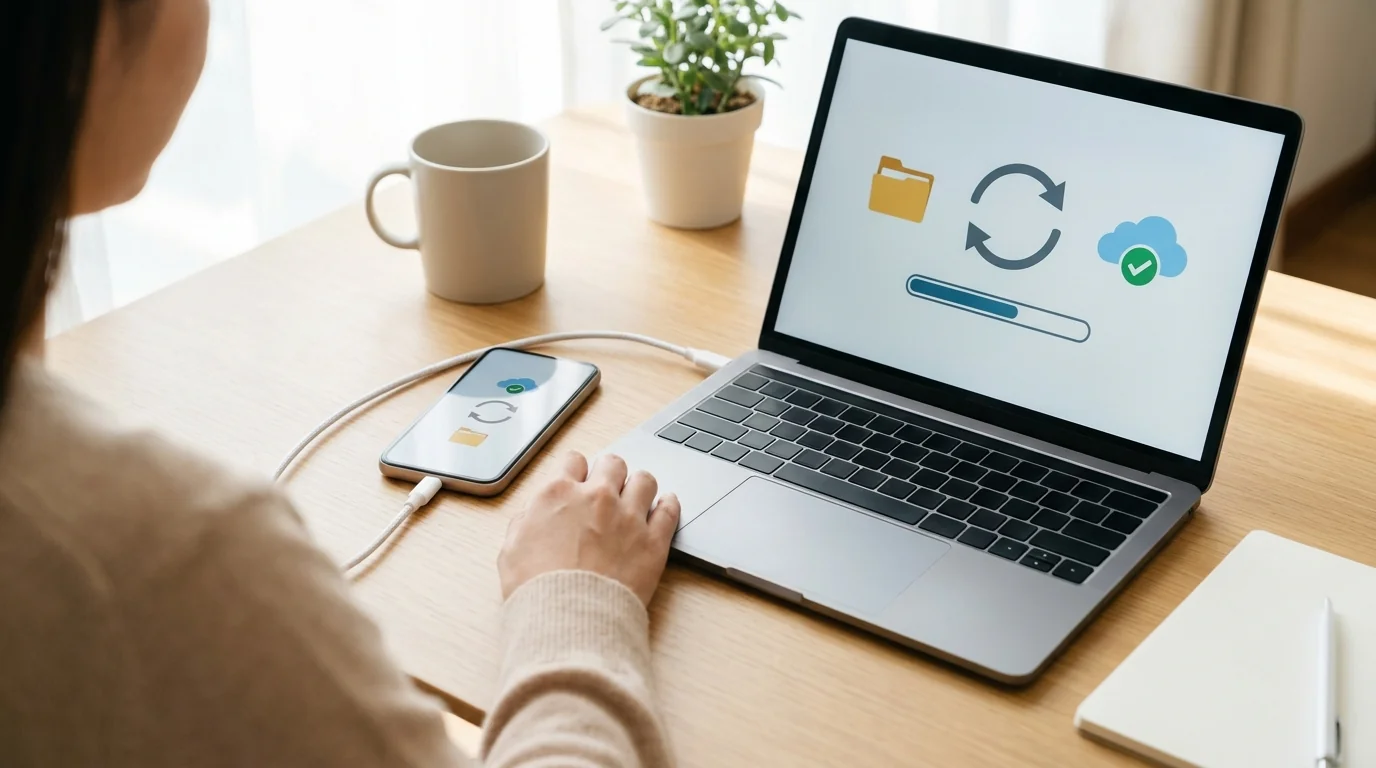
Before you update, back up your photos and data and plug the phone into its charger. Updates are safe when the battery is full and your data is backed up. Then turn on automatic updates so this never happens again.
FAQs
How do I check if my phone needs an update?
On an iPhone, open Settings, then General, then Software Update. On Android, open Settings, then System, then Software Update, though the exact path varies by brand. Your phone will tell you if an update is available and how big it is.
Is it safe to update my phone?
Yes, as long as you prepare. Back up your data, connect to Wi-Fi, and plug in the charger before you start. Updates very rarely cause problems, and the security fixes they include make your phone safer than before.
How long does a phone update take?
Small security updates take about ten minutes. Big version updates can take thirty minutes to an hour, including the download. Start the update when you do not need your phone, like before bed.
Will updating delete my photos or apps?
No. Updates keep your photos, apps, and settings in place. That said, a backup is still wise, because a rare failed update is much easier to recover from when your data is saved elsewhere.
What if my phone says it is up to date but still acts old?
Your phone model may have reached the end of its update support, which happens after several years. Check the manufacturer’s support page for your model. If no more updates are coming, the slowness is hardware age, and it may be time to plan a replacement.
Conclusion
That is the full checklist: crashes, slow battery, missing features, and months without an update. A few minutes of updating keeps your phone fast and safe. When did you last update your phone?