After one too many ‘laptop battery draining fast, how to fix this?!’ panic searches, I spent a month testing every tip myself. Mine died at 18 percent during a flight boarding call with no outlet in sight. I kept what actually moved the needle and ditched the myths. These 11 fixes are the real ones that actually work, starting with the fastest wins.
1. Turn Down the Screen Brightness
Your display is the hungriest part of your laptop, often eating more power than everything else combined. Most people run at 100 percent brightness out of habit, even indoors where 60 percent looks identical. Dropping it down is the single fastest win on this entire list.
On Windows, use the brightness slider in Quick Settings or just tap the function keys. On Mac, it is in Control Center or the Touch Bar. Try 60 to 70 percent indoors and only crank it up in sunlight. This one change alone bought my laptop an extra hour.

2. Switch On Battery Saver Mode
Every modern laptop ships with a battery saver mode that most people never touch. On Windows, turn it on in Settings under System then Power and Battery. On Mac, enable Low Power Mode in System Settings under Battery. It throttles background activity and trims visual effects automatically.
Set it to kick in automatically at 40 percent so you never have to remember. You will not notice the difference during browsing, email, or documents. Gaming and video editing slow down a bit, but for everyday work it is pure gain with zero effort.
3. Laptop Battery Draining Fast: How to Fix the Hidden App Drain
Some app is almost always misbehaving in the background, and finding it is step one. On Windows, open Task Manager, sort by power usage, and look for anything suspicious near the top. On Mac, open Activity Monitor and check the Energy tab for the worst offenders.
Common culprits include Chrome with fifty tabs, Slack, Spotify, and cloud backup tools syncing endlessly. Close what you do not need, or quit and reopen the offender to stop a runaway process. I once found a frozen updater eating 30 percent of my battery for absolutely nothing.
4. Turn Off Bluetooth, Wi-Fi, and Location When Idle
Your radios keep scanning for connections even when you are not using them, and that scanning costs power around the clock. Bluetooth hunting for headphones, Wi-Fi probing for networks, and GPS pinning your location all add up. On a plane or in a meeting, they are pure waste.
Flip on airplane mode when you do not need connectivity, or toggle each radio off individually in Quick Settings or Control Center. Location services deserve special attention: set them to While Using instead of Always for every app. These tiny toggles compound into real hours.
5. Shorten the Screen Timeout
When it comes to laptop battery draining fast, how to fix it often starts with the screen timeout nobody checks. If your display stays on for ten idle minutes, that is ten minutes of full power burn every time you get coffee. Five minutes is generous, two is better.
On Windows, go to Settings, System, Power and Battery, then Screen and Sleep. On Mac, it is under Lock Screen settings. Set the display to sleep after two or three minutes on battery. Your screen is a space heater for your battery, so put it to sleep aggressively.
6. Unplug USB Devices You Are Not Using
Every plugged-in gadget sips power from your laptop, even when idle. External drives, phone charging cables, USB hubs, and dongles all draw current continuously. A spinning external hard drive is particularly thirsty and can shave a noticeable chunk off your runtime.
Unplug everything you are not actively using, especially when running on battery. Charge your phone from a wall adapter instead of your laptop. This sounds trivial, but I measured a real 45-minute difference with just a hub and drive disconnected.
7. Update Your System and Drivers
Skipped updates often include power management fixes, because manufacturers constantly tune how hardware sips energy. An old graphics driver or a buggy OS build can keep components awake that should be sleeping. Running outdated software is like driving with the parking brake on.
On Windows, check Windows Update and your manufacturer’s driver tool monthly. On Mac, install macOS updates promptly since Apple folds battery optimizations into nearly every release. Restart after updating so the new power profiles actually take effect.
8. Run a Battery Health Report
Anyone googling laptop battery draining fast how to fix should run this report before buying anything. On Windows, open Command Prompt and type powercfg /batteryreport to generate a detailed HTML file. It shows your original capacity versus current capacity, revealing how worn the battery is.
On Mac, hold Option, click the Apple menu, go to System Information, then Power, and check the cycle count and condition. If your battery holds under 70 percent of its original capacity, no software tweak will save it. Knowing the number stops you from chasing software fixes for a hardware problem.

9. Switch to Power-Efficient Graphics and Modes
Many laptops have two graphics chips: a power-hungry one for gaming and a frugal one for everything else. If the hungry chip runs during web browsing, your battery melts for no reason. Both Windows and macOS usually switch automatically, but the setting sometimes gets stuck.
On Windows, check Settings, System, Display, Graphics to force apps onto power saving mode. On Mac, make sure Automatic Graphics Switching is enabled in Battery settings. Also pick the Best Power Efficiency slider over Best Performance when unplugged. Your fans will thank you too.
10. Kill the Keyboard Backlight and Fancy Effects
That glowing keyboard looks cool in a dark room and quietly drinks power the entire time. Transparency effects, animated wallpapers, and widgets do the same in smaller sips. None of them matter for getting work done, but together they add up to a real drain.
Dim the keyboard backlight to the lowest comfortable level or off entirely in daylight. On Windows, turn off transparency in Personalization settings. On Mac, reduce motion in Accessibility settings. You will not miss the eye candy, but your battery meter will notice.
11. Replace the Battery When It Is Truly Done
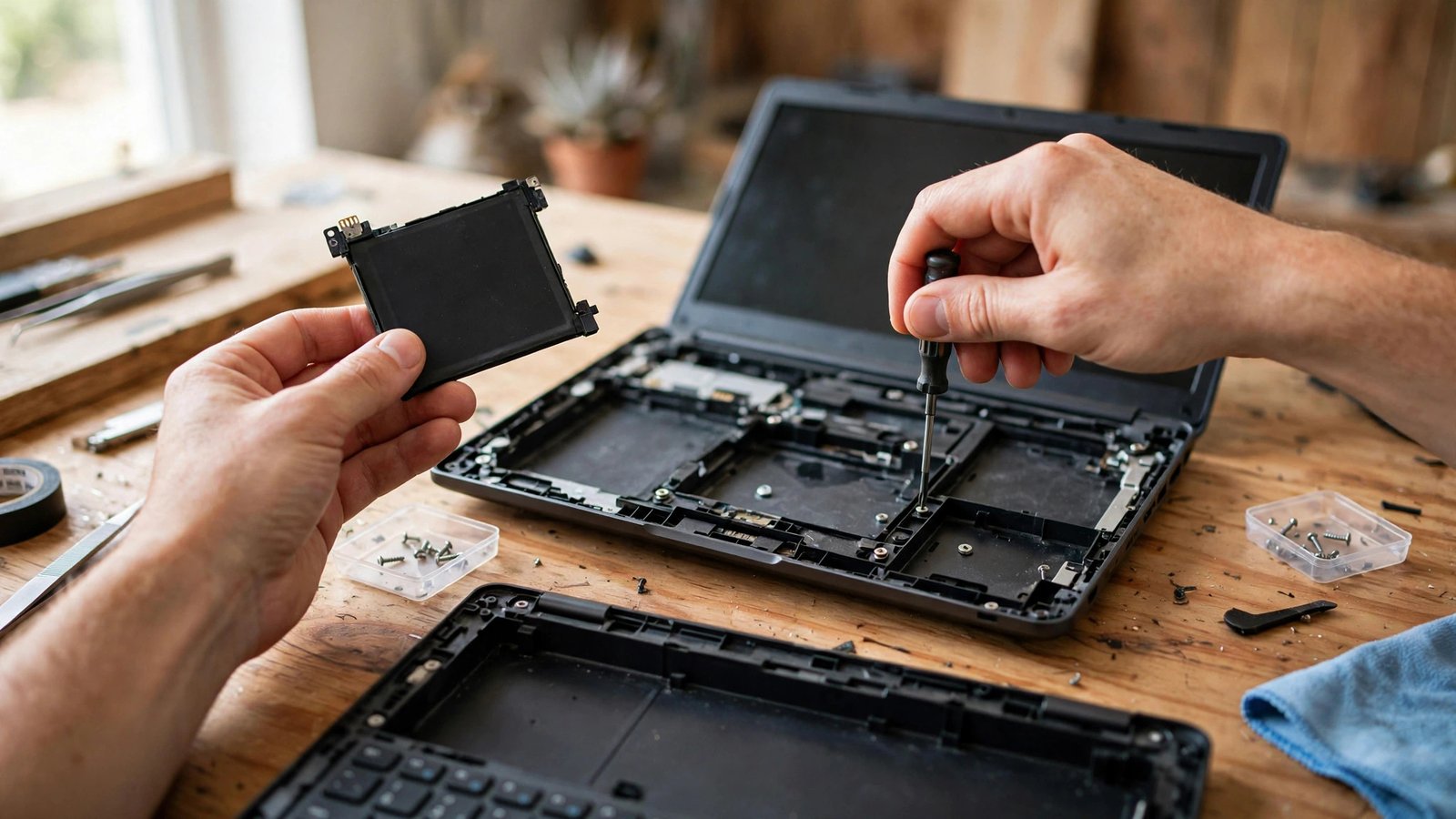
Sometimes the honest fix is accepting the battery is worn out, because lithium batteries degrade no matter what you do. After 500 to 1,000 charge cycles, most hold far less than when new. If your report shows under 70 percent health, replacement beats another year of outlet hunting.
Check if your model has a user-replaceable battery, which costs far less than a shop visit. Otherwise, get a quote from the manufacturer or a trusted repair shop first. A fresh battery can make a five-year-old laptop feel brand new for a fraction of replacement cost.
FAQs
Why is my laptop battery draining fast even on power saver?
Because the biggest drains hide where power saver cannot reach them, like a runaway background app or a dying battery. For laptop battery draining fast, how to fix it means checking Task Manager for power hogs and running a battery health report. If health is under 70 percent, the battery itself is the problem.
Is it bad to leave my laptop plugged in all the time?
Modern laptops manage this well and stop charging at 100 percent, so it will not kill your battery outright. Still, constant heat from always being plugged in ages batteries faster. Many manufacturers now offer a charge limit setting around 80 percent, which is ideal if you mostly work at a desk.
How long should a laptop battery last on a charge?
Most modern laptops promise 8 to 15 hours, but real-world use with brightness up and apps open usually lands at 5 to 8. If you are getting under 3 hours on a relatively new machine, something is wrong. Run through the fixes above before assuming the hardware is at fault.
Does closing background apps really save battery?
Yes, but only the misbehaving ones matter. A frozen updater or a browser with fifty tabs can eat more than everything else combined. Normal idle apps barely sip power on modern systems. Check Task Manager or Activity Monitor instead of closing things blindly, and target the actual offenders.
Should I replace the battery or buy a new laptop?
If the laptop still runs well and only the battery is weak, replace the battery. It costs a fraction of a new machine and takes an afternoon. Buy new only when the whole system feels slow, cannot run current software, or the repair costs approach half the price of a replacement.
Conclusion
Most fast-draining batteries are fixed by brightness, background apps, and settings, not new hardware. Work through these fixes in order and measure the difference. Your laptop might just surprise you.