
Figuring out how to organize computer files was the day my digital life stopped feeling like a junk drawer. I used to have three folders named “final,” two desktops worth of screenshots, and a downloads folder that could swallow a country. Nothing was ever where I left it. These 10 rules fixed all of that, and they are simple enough that I still follow every one of them years later.
1. Start With Five Buckets, Not Fifty Folders
The biggest mistake I see is people building a forty-folder system on day one and abandoning it by Friday. You only need five top-level buckets to start: Work, Personal, Photos, Finance, and Archive. Everything you own fits into one of those. The simplicity is the point, because a system you actually use beats a perfect one you ignore.
Create those five folders now, in your Documents or home folder, and drag everything loose into the closest match. Do not overthink the borderline cases. You can split a bucket later once it overflows, but most people never need to.
2. Name Every File Like You Will Search for It
Vague names are where files go to die. Before you save anything, give it a name with a date and a description, like 2026-10-09-bill.pdf. It takes five seconds and it pays off every time you search.
Pick one format and stick to it everywhere: date first, then topic, then detail. Never mix 10-09-2026 with 2026-10-09, or sorting breaks. I use dashes instead of spaces because some older programs still choke on spaces.
3. Archive, Don’t Hoard
Old projects do not need to live next to this week’s work, and keeping them there slows you down every day. Make an Archive folder and move anything you have not touched in three months into it, dated by year. Your active folders stay lean, your old stuff stays safe, and your brain stops tripping over 2023 tax drafts.
Archiving is not deleting, so there is no fear involved. If you need something, you know where it went. I do an archive sweep every January and it takes twenty minutes, and honestly it feels better than cleaning out a closet.
4. Tame the Desktop
Your desktop is a workspace, not a storage unit, and every icon there is a tiny distraction tax. Move everything into its proper folder and leave at most five shortcuts you use daily. A clean desktop loads faster in your brain the same way a clean desk does, and screenshots stop piling up like snowdrifts.
Set your screenshot tool to save into a Screenshots folder instead of the desktop. On a Mac, change it in the Screenshot app options; on Windows, tweak the Snipping Tool settings. This one change alone ended my desktop clutter forever.
5. How to Organize Computer Files With a Simple Folder Tree
Here is where how to organize computer files gets practical. Build a shallow tree, never more than three levels deep. Work, then Clients, then the client name is plenty. Every extra level is a click you will resent, and deep nesting is where files go to hide from you for months.
If you catch yourself making a fourth level, stop and ask whether the folder above it needs splitting instead. Nine times out of ten, the answer is yes. Flat and wide beats tall and narrow, and you will feel the difference the first time you hunt for an invoice.
6. Give Every Download a Home Within a Week
Think of the Downloads folder as a waiting room, not a residence, and files that sit there rot. Once a week, spend five minutes moving each download to its real folder or deleting it. I do this every Friday with coffee, and it keeps the folder from turning into the equivalent of a junk drawer. A Friday reminder on my phone made it automatic.
While you are there, delete the installers you already ran. Those .dmg and .exe files pile up fast and you will never need them again. If you ever do, downloading a fresh copy takes two minutes.
7. Keep Work and Personal in Separate Worlds
Mixing work files with personal photos is how things get lost and how embarrassing accidents happen on screen shares. Give work and personal life their own top-level folders and never let the two mingle. When you switch contexts, you switch folders, and your brain gets the message. It also keeps work backups from swallowing your personal photos.
This also makes backups and job changes painless. When you leave a job, hand over one folder. Your personal stuff never gets tangled in it. I learned this the hard way after a client saw my vacation photos during a presentation.
8. Let Search Do the Heavy Lifting
Even a perfect folder system fails sometimes, and that is what search is for. On Windows, the Start menu search finds files instantly; on Mac, Spotlight does the same with one keystroke. Learning to search by filename instead of clicking through folders will save you hours every month.
This only works if your naming is decent, which is why rule two matters so much. Good names plus fast search means you almost never browse manually. I probably open folders by hand twice a week now, and both times it feels old-fashioned.
9. Hunt Down Duplicates Once a Month
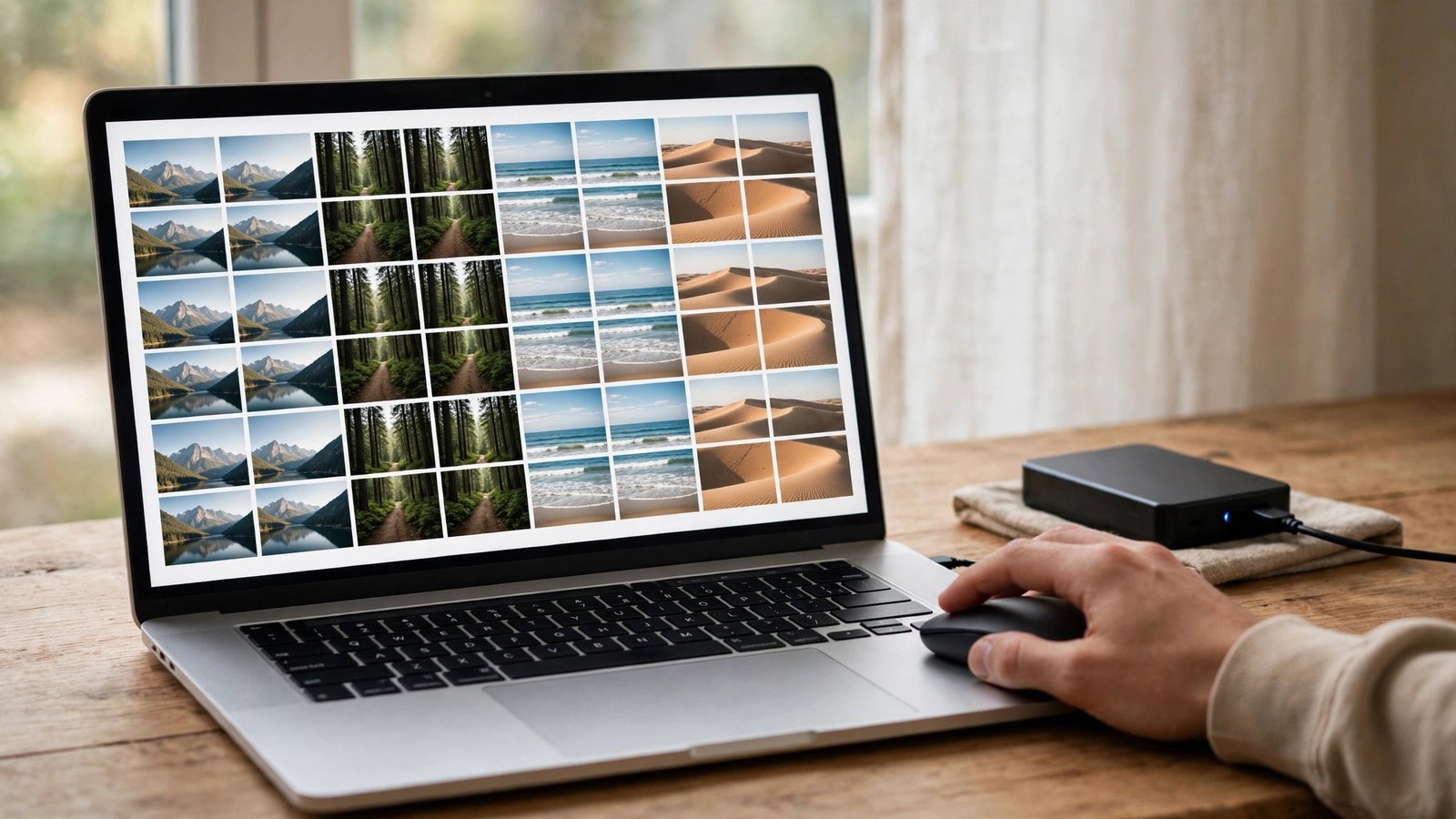
Duplicates multiply like rabbits, especially photos and downloaded attachments, and they eat storage silently. Once a month, sort your biggest folders by name and eyeball the repeats, because learning how to organize computer files means accepting that duplicates happen. Deleting ten copies of the same PDF feels weirdly satisfying. Your drive will breathe easier immediately.
The usual suspects are the Downloads folder and anywhere you save email attachments. Check those first and you will catch most of them. I freed up 30 gigabytes last spring doing exactly this, mostly installers and repeated downloads.
10. Make the System Back Itself Up
An organized system you lose to a dead hard drive is no system at all, so backups are the final rule. Turn on your operating system’s built-in backup, Time Machine on Mac or File History on Windows, and point it at an external drive. It runs quietly and you never think about it again.
Add a cloud copy of your most important folder for good measure. If the house floods or the laptop gets stolen, the cloud copy is what saves you. Organization plus backup is the whole game, and now you are playing it.
FAQs
How often should I reorganize my computer files?
A full reorganization once a year is plenty if you follow the weekly tidy rule. The system maintains itself through small habits, so you should never need another big overhaul. If a folder starts feeling chaotic, that is your signal to split it or archive the old stuff, not to rebuild everything from scratch.
What is the best folder structure for organizing computer files?
Keep it shallow and simple: five to seven top-level folders, no more than three levels deep. Name folders by what is inside them, not by project code names you will forget. The best structure is the one you can explain to someone else in ten seconds, because if you cannot explain it, you will not maintain it.
Should I organize files on my computer or just use cloud storage?
Do both, but keep one system of truth. Organize files locally with the rules above, then let your cloud service mirror those same folders. Cloud storage is a backup and a sync tool, not an organization strategy. If your local folders are a mess, your cloud will just be a mess you can access from your phone.
How do I name files so I can actually find them later?
Lead with the date in YYYY-MM-DD format, then a plain description with dashes between words. Dates sort chronologically on every system, and plain words match what you will type into search. Skip clever abbreviations and version numbers like “final-final-v2” that mean nothing six months from now.
What should I do with files I might need someday but not now?
Archive them with a date and forget them. Make an Archive folder organized by year, move the “someday” files there, and stop thinking about them. They are safe if you need them and invisible if you do not. Anything still untouched after two years in the archive is a strong candidate for deletion.
Is it better to organize computer files by date or by topic?
By topic first, with dates inside the file names. Date-based folders become meaningless fast because you forget what went where. Topic folders stay obvious forever, and the date in each filename gives you the chronology when you need it. Best of both worlds, zero extra effort.
Conclusion
That is the whole system: five buckets, honest names, a weekly tidy, and a backup. It takes an afternoon to set up and minutes a week to keep. Which rule will you start with today?