
Learning how to back up your phone is the least exciting and most important thing you will do this week. I learned this after dropping my phone in a lake and losing two years of photos in one splash. Nobody thinks about backups until the moment they need one. These 10 basics take less than an hour total, and they make losing your phone an annoyance instead of a tragedy.
1. Turn On the Automatic Backup First
The single most important step is also the easiest: switch on your phone’s automatic backup and let it run while you sleep. On iPhone, it is iCloud Backup under Settings; on Android, it is Google One backup. Once it is on, your phone quietly copies itself every night on Wi-Fi, and you never have to think about it again.
Do this right now, before you read rule two. It takes thirty seconds and it immediately protects everything. I turned mine on three years ago and have not thought about it since, which is exactly the point.
2. Use the Cloud as Your Main Safety Net
Cloud backup beats every other method for one reason: it happens without you. A cable backup to a laptop only works if you remember to plug in, and nobody remembers. iCloud and Google One run on schedule, keep multiple versions, and restore to a brand-new phone in under an hour.
The free tier covers the basics, and the paid plans cost less than a coffee per month. Check your storage in Settings and upgrade if it is full, because a backup that cannot finish is the same as no backup. This is the cheapest insurance you will ever buy.

3. Make Sure Your Photos Are Actually Included
Photos are what people cry over losing, so verify they are in the backup. Open your backup settings and confirm the photo library toggle is on; on some Android phones, Google Photos backup is a separate switch from the main backup. Do not assume, because assuming is how vacation albums vanish.
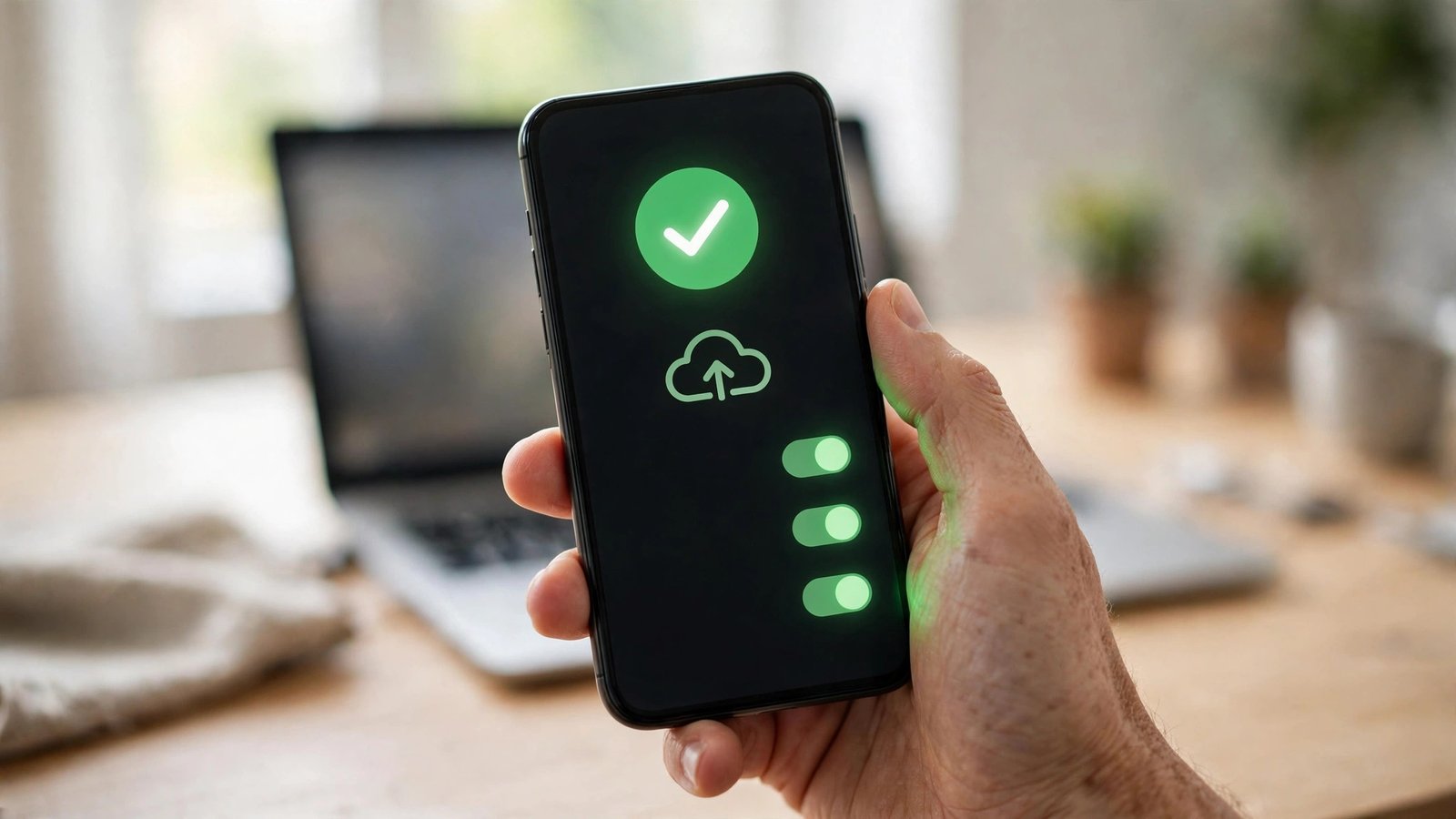
If your photo library is huge, let the first backup run overnight on Wi-Fi. It can take hours the first time and minutes after that. Once the green checkmark appears, your memories are safe, and you can finally stop worrying about them.
4. Don’t Forget Your Messages and Chats
Your text history holds addresses, plans, and conversations you will want later, but it is not always backed up by default. On iPhone, check that Messages is toggled on in iCloud settings; on Android, Google One covers SMS if you enable it. WhatsApp has its own backup switch inside the app, and it is off until you turn it on.
Chat backups are small and fast, so there is no reason to skip them. I recovered a two-year WhatsApp thread with my contractor after switching phones, and every measurement and invoice was right there. Turn it on tonight.
5. Keep Your Passwords Somewhere You Can Reach Them
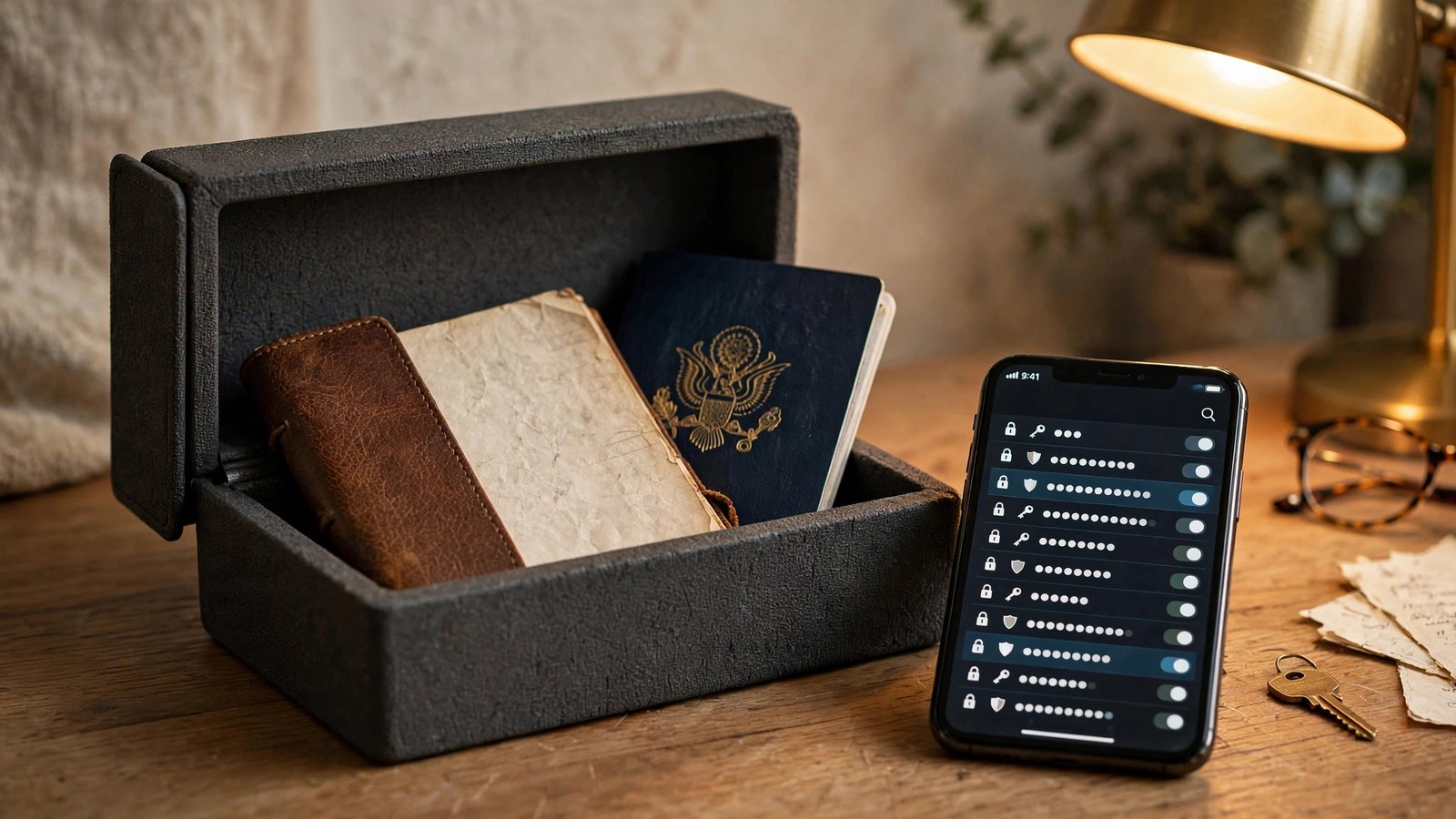
A backup is useless if you cannot sign into anything afterward, so protect your passwords too. Use your phone’s built-in password manager, iCloud Keychain or Google Password Manager, and make sure it syncs. Write your Apple or Google account password on paper and keep it somewhere safe at home.
That paper password is your master key to everything, including the backup itself. Without it, a perfect backup might as well not exist. I keep mine in a fireproof box with my passport, and I sleep better for it.
6. How to Back Up Your Phone Right Before a Big Update
Updates rarely break things, but “rarely” is not “never,” so learning how to back up your phone manually before a major OS update is smart insurance. On iPhone, tap Back Up Now in iCloud settings; on Android, hit Back up now in Google One. Wait for the confirmation before you tap Install.
This manual backup captures everything exactly as it is today, separate from the automatic nightly one. If the update goes sideways, you restore to this morning, not last Tuesday. It takes ten minutes and it has saved me exactly once, which was exactly enough.
7. Actually Test That Your Backup Works
A backup you have never tested is a hope, not a plan, and hopes do not restore phones. Once, open your iCloud or Google One settings and confirm the last successful backup date is recent. If it says “failed” or shows a date from three months ago, fix it now while nothing is on fire.
You do not need to do a full restore to test; the dashboard confirmation is enough for most people. But if you are the careful type, borrow nothing and simply check the storage numbers add up. Peace of mind takes two minutes.
8. Keep a Second Copy of What You Can’t Replace
One backup is good, but photos of your kids deserve two. Once a quarter, copy your photo library to an external drive or a second cloud service. It takes an hour while you watch TV, and it protects against the one scenario a single backup cannot: your cloud account itself getting locked.
I use a cheap USB drive I bought years ago, and it just sits in a drawer doing its job. Redundancy sounds paranoid until the day it does not. For irreplaceable memories, paranoid is the correct setting.
9. Back Up Your Contacts on Their Own
Contacts sometimes live only on the phone’s local storage, especially on older Androids, and losing them is uniquely painful. Export them once to a VCF file and email it to yourself, or confirm they sync to your Google or iCloud account. It takes ninety seconds and it is the most overlooked backup of all.
Check this today, because it is the one people discover too late. Open your contacts app settings and look for the sync toggle. If your contacts are not syncing anywhere, fix it before you finish reading this article.
10. Put Backups on Autopilot and Forget Them
A backup system you never touch is ideal, so finish by making it automatic. Confirm auto-backup is on, photo sync is on, and your cloud storage is not full. Then close the settings app and go live your life, because the point of this article is backups that happen without you.
Set one monthly reminder to glance at the backup date, and that is the maintenance plan. You have now spent less than an hour learning how to back up your phone and protecting years of your life. That is a trade I will take every time.

FAQs
How often should I back up my phone?
If automatic backup is on, it happens daily without you lifting a finger, which is ideal. For manual backups, once a week is plenty for most people. Back up immediately before any OS update or before you hand your phone to a repair shop. Those are the moments when things actually go wrong.
Does backing up my phone save everything?
Almost. It saves photos, messages, contacts, apps, and settings. It does not save anything stored only inside certain apps unless those apps have their own backup, like WhatsApp. Check your most important apps individually. When you restore to a new phone, it should feel like you never left the old one.
Is iCloud or Google One backup enough on its own?
For most people, yes. Both run automatically, keep your data encrypted, and restore cleanly to a replacement phone. The main risk is running out of storage, which silently stops backups. Check your storage once a month. If you want extra safety, add the second copy from rule eight.
How long does a phone backup take?
The first one is the slow one: anywhere from twenty minutes to a few hours depending on how many photos you have. After that, nightly backups finish in minutes because they only copy what changed. Always do the first backup on Wi-Fi while your phone charges overnight.
What happens to my backup if I switch from iPhone to Android?
Your photos and contacts transfer fine through Google’s Switch to Android tool or Apple’s Move to iOS. Messages and app data are trickier and may not carry over completely. Move your photos to Google Photos first, since those work on both sides. Expect a little cleanup afterward, but nothing catastrophic.
Conclusion
That is the complete playbook: automatic backup on, photos verified, chats saved, and one test to prove it works. Do the first three rules today and the rest this weekend. What is the one thing on your phone you would hate to lose?