
Phone storage full but nothing to delete is the most frustrating notification on earth. You already deleted the blurry photos, the old apps, and the memes from 2019, yet your phone still screams that it is full. I have been there twice, and both times the real fix was hiding in places I never thought to look. These 11 tricks dig out the invisible junk eating your space.
1. Clear Cached Data App by App
Your apps quietly hoard temporary files called cache, and over months this pile can swallow several gigabytes. Social media apps are the worst offenders because they save every image you scroll past. I once found Instagram holding 2.3 GB, wild for an app I open ten minutes a day.
On Android, open Settings, Apps, tap any heavy app, and hit Clear Cache. This never touches your logins or personal data, only temporary junk. On iPhone there is no single button, so delete and reinstall the worst offenders. Start with your five biggest apps.
2. Offload Unused Apps Automatically
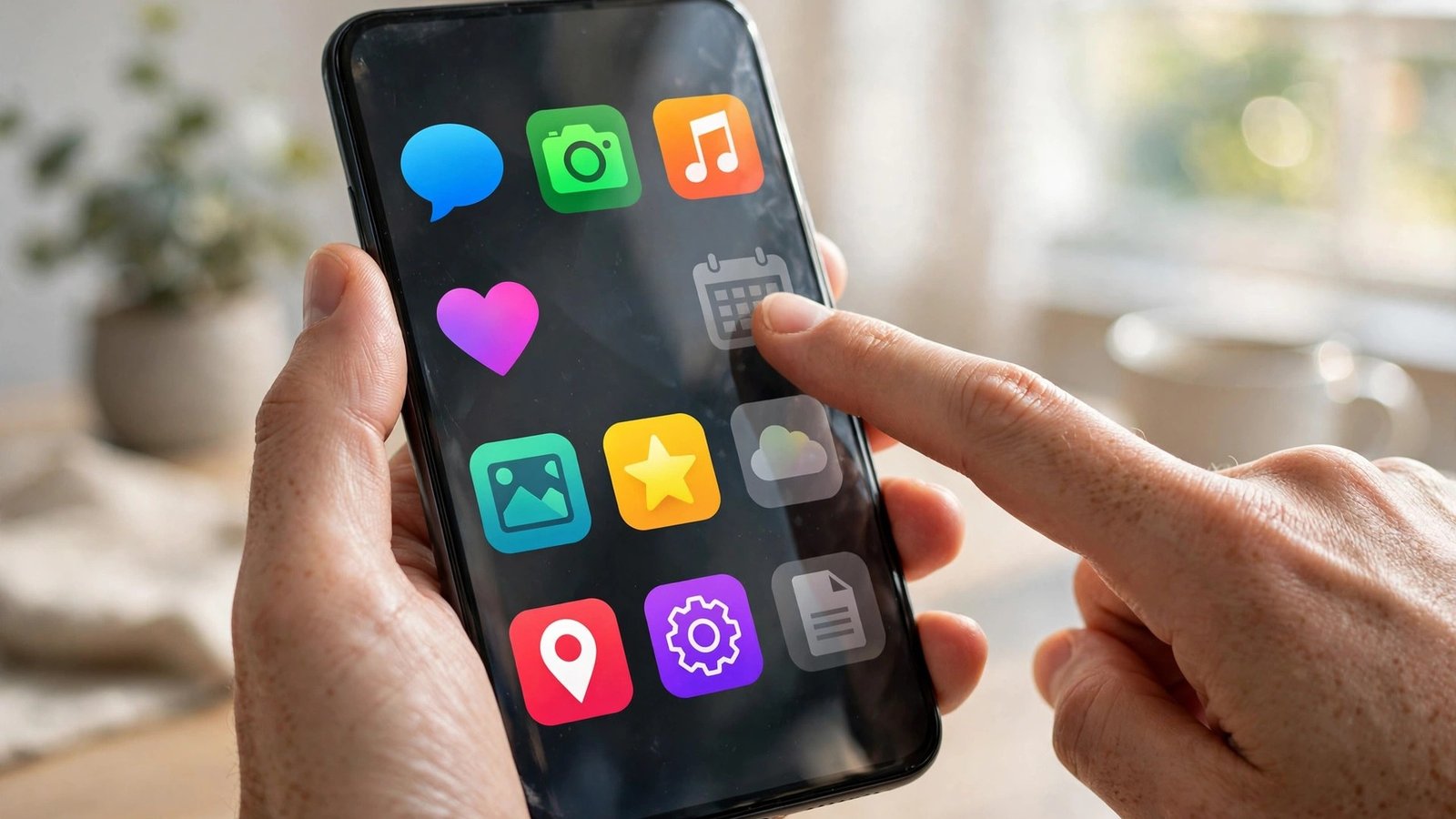
Both iPhone and Android can remove apps you never touch while keeping their data safe. On iPhone the feature is called Offload Unused Apps: it deletes the app but saves your documents and settings. Tap the grayed-out icon later and the app downloads fresh, everything exactly where you left it.
Android does the same with app archiving, which shrinks unused apps to a fraction of their size. Turn it on in Settings under Storage. I offloaded eleven apps I had not opened in months and got back almost 4 GB without losing a single file.
3. Delete Old Podcasts and Downloaded Episodes
Podcast apps auto-download new episodes in the background, and a daily show can stack up hundreds of megabytes weekly. Most people set this once and forget it. Check your podcast app and you might find forty episodes you will never listen to.
Open your podcast app, open downloads, and delete anything older than a week. Then turn off auto-downloads or limit them to two episodes per show. Same goes for music apps with offline mode. I freed 1.8 GB in three minutes clearing last year’s backlog.
4. Empty Your Browser Cache and Old Tabs
Every website you visit stores images and page data in your browser, and heavy users can accumulate over a gigabyte without realizing it. If you are the kind of person with eighty tabs open, those tabs are also holding cached pages hostage. Your browser is heavier than you think.
In Chrome, tap the three dots, go to History, then Clear Browsing Data, and choose cached images and files. In Safari, go to Settings, then Safari, and tap Clear History and Website Data. Close the tabs you are honestly never revisiting. Thirty seconds of work often returns half a gigabyte.
5. Hunt Down Duplicate Photos and Screenshots
If you keep seeing ‘phone storage full but nothing to delete’ after clearing photos, duplicates are the next place to look. Your camera roll holds near-identical shots, burst photos, and one-time screenshots. iPhones have a Duplicates album under Utilities in Photos, and Android’s Files app flags blurry shots automatically.
Screenshots are the sneakiest eaters: each one is small but they pile into the hundreds. Search for screenshots tied to finished tasks, old receipts, and expired codes, then delete them in bulk. I deleted 300 in one sitting and recovered over a gigabyte.
6. Delete Message Attachments You Forgot About
Every photo and video anyone ever sent you lives inside your messaging apps, even years later. Group chats are the biggest culprits because ten people sharing memes daily adds up fast. WhatsApp and iMessage store this media separately from your camera roll, so it hides from photo cleanups.
On iPhone, go to Settings, General, iPhone Storage, tap Messages, and review the biggest attachments. In WhatsApp, go to Settings, Storage and Data, then Manage Storage to see your largest files. Delete the giant videos first. One friend freed 5 GB clearing two years of group chat videos.
7. Phone Storage Full but Nothing to Delete? Blame WhatsApp
When your gallery is empty but the phone still complains, WhatsApp is very often the hidden villain. It auto-saves every photo and video from every chat by default, including stuff you glanced at once. I have seen WhatsApp folders top 8 GB on phones whose owners swore they had no files.
Open WhatsApp, go to Settings, Storage and Data, and turn off media auto-download everywhere. Then use Manage Storage to bulk-delete files larger than 5 MB. You keep your chats, but forwarded videos stop piling up. This single fix solves it for a shocking number of people.
8. Use the Built-In Storage Cleaner
That ‘phone storage full but nothing to delete’ warning gets less mysterious once you see the breakdown. On Android, Settings then Storage shows a color-coded map with one-tap cleanup suggestions. On iPhone, the same lives under Settings, General, iPhone Storage.
Follow the personalized recommendations at the top, like reviewing large attachments or offloading apps. These tools exist because phone makers know storage fills up mysteriously, and they are smarter than random cleaner apps from the app store. Skip third-party cleaners entirely and trust the one already on your phone.

9. Delete Downloaded Maps and Offline Videos
That offline map of an entire country from one vacation is still sitting there, probably close to a gigabyte. Google Maps lets you download whole regions, and most people never delete them after the trip. Streaming apps do the same with movies you downloaded for a flight six months ago.
Open Google Maps, tap your profile picture, go to Offline Maps, and delete every region you are not actively using. Then check Netflix, YouTube, or Spotify for forgotten downloads. I found three movies from a 2024 trip still hogging 4 GB. Deleting them took ten seconds.
10. Restart Your Phone to Shrink System Data
When the ‘phone storage full but nothing to delete’ alert will not go away, blame temporary system files. They build up while your phone runs for weeks without a break, hiding inside the mysterious System Data category. A restart forces the system to sweep out files it no longer needs.
Hold the power button, restart, and recheck storage after a few minutes. Many people see System Data drop by a gigabyte or two. Installing a pending software update helps too, since updates clean up old system files. Do this monthly and the bloat stays small.
11. Back Up Photos, Then Free Up Space for Real
This is the big one when your storage is genuinely full of photos you refuse to delete. Back up everything to Google Photos or iCloud, verify the backup actually finished, and then let the phone remove the local copies. Both services have a one-tap Free Up Space button that does this safely.
The step everyone skips is verifying the backup first. Open the cloud service on a computer and confirm your photos are really there. Once confirmed, the cleanup can free 10 GB or more in minutes. Your memories stay safe online, and your phone finally breathes again.

FAQs
Why does my phone say storage is full when I deleted everything?
Because the biggest space hogs are invisible: app cache, WhatsApp media, message attachments, and system data. Your photo gallery is only one slice of the pie. When phone storage is full but nothing is left to delete visibly, the junk is hiding inside apps and system folders, which is exactly what the tricks above target.
Will clearing cache delete my photos, messages, or logins?
No. Clearing cache only removes temporary files like thumbnails and preloaded images, never your personal data. Your photos, chats, and login sessions stay untouched. The worst that happens is an app takes a few extra seconds to load images next time, then rebuilds a much smaller cache.
What is the “Other” or “System Data” storage category?
It is a catch-all bucket for system files, logs, caches, and update leftovers that do not fit other categories. Some of it is essential, but a lot is temporary clutter. Restarting your phone and installing software updates are the two safest ways to shrink it without touching anything important.
Are third-party cleaner apps safe to use?
Mostly no. Many cleaner apps are stuffed with ads, and some are outright scams that do nothing useful. Your phone already has a built-in storage tool that is safer and smarter. Stick with the cleaner in Settings and skip anything promising to magically boost your phone.
How do I stop my phone from filling up again?
Turn off WhatsApp media auto-download, limit podcast downloads to two episodes, and turn on cloud photo backup with the free-up-space option. Do a five-minute cleanup once a month. These three habits alone prevent the slow creep behind most full-storage emergencies.
Conclusion
Full storage almost never means you need a new phone, it means invisible junk is hiding where you never look. Work through these tricks one by one and you will likely recover several gigabytes today.