

Asking why is my wifi so slow all of a sudden is one of the most frustrating tech moments, because everything worked yesterday and now pages crawl. I went through this last month before an important video call, and the panic was real. Sudden slowdowns almost always have a specific, fixable cause. Here are the twelve reasons I check, in order, and how to fix each one.
1. Restart Your Router and Modem
The oldest trick in tech support works because routers are tiny computers that develop glitches after weeks of uptime. Unplug both your modem and router from power, wait a full thirty seconds, then plug the modem back in first. Give it two minutes to reconnect, then power up the router.
This clears the router’s memory, drops stuck connections, and forces a fresh handshake with your internet provider. I fix about half of all my Wi-Fi complaints with this thirty-second ritual alone. If you find yourself doing it weekly, though, your router may be dying and needs replacing.
2. Check for an ISP Outage
Sometimes the problem is not in your house at all, because your internet provider is having an outage in your area. Check your provider’s status page or a site like Downdetector on your phone’s mobile data. If neighbors are complaining too, it is definitely on their end.
There is nothing to fix here except patience, but knowing it is an outage saves you an hour of pointless router troubleshooting. Most outages resolve within a few hours, and some providers offer bill credits if you ask. Bookmark your provider’s status page now so you can check it in seconds next time.
3. Move Closer to the Router
Wi-Fi signals weaken fast with distance and walls, so a laptop fine in the living room may crawl in a far bedroom. Walk closer to the router and run a speed test at speedtest.net in both spots. If speeds jump near the router, distance is your problem.
The fix can be as simple as moving your desk, or you might need a Wi-Fi extender for dead zones. Thick walls, metal appliances, and even fish tanks block signals surprisingly well. I moved my router from a closet to a central shelf and gained a full bar in every room.

4. Kick Off Bandwidth Hogs
One device can quietly devour your connection, like a console downloading a 100 GB update or a phone backing up photos. Log into your router’s admin page, usually at 192.168.1.1, and check which devices use the most data. Pause the hogs and watch your speed recover.
Streaming 4K on two TVs while someone video calls will also max out a modest plan. I once blamed my provider for an hour before finding my laptop uploading a huge backup. Most routers let you prioritize devices, so give your work laptop first dibs during the day.
5. Update Your Router’s Firmware
Router makers release firmware updates that fix bugs, patch security holes, and sometimes improve speed, but almost nobody installs them. Log into your router’s admin page and look for a firmware update section. The update takes five minutes and the router reboots itself.
An update once fixed a mysterious slowdown on my network that had annoyed me for weeks. Check twice a year, because routers never remind you themselves. If your router is over six years old with no updates left, that is a strong hint to replace it.
6. Switch to a Less Crowded Wi-Fi Channel
In apartment buildings, dozens of routers fight over the same Wi-Fi channels, and the interference slows everyone down. A free app like WiFi Analyzer shows which channels neighbors use least. Switch your 2.4 GHz network to channel 1, 6, or 11, whichever is emptiest.
This made a dramatic difference in my old apartment, where twenty networks crowded one channel. The 5 GHz band usually has less congestion, so prefer it when close to the router. Channel switching is free, takes two minutes, and is one of the most overlooked speed fixes.

7. Pause Background Downloads and Updates
Your own devices often sabotage your speed with updates you never asked for right now. Windows, phones, game consoles, and cloud backup apps all download in the background by default. Check for active downloads on each device and pause them, then set large updates to run overnight instead.
Steam, Windows Update, and iCloud are the usual suspects in my house. On Windows, you can set your Wi-Fi as a metered connection to stop automatic downloads entirely. One paused 50 GB game update once restored my video call quality instantly, which tells you how much these hidden downloads matter.
8. Scan for Malware on Your Devices
Malware can secretly use your connection for spam, crypto mining, or attacks, leaving you with the scraps of your own bandwidth. If the slowdown hit suddenly and only one device seems affected, run a full scan with Windows Security and Malwarebytes. Quarantine anything they find and retest your speed.
A neighbor’s computer once joined a botnet and their internet crawled for a month before they figured it out. Also check for unfamiliar devices on your Wi-Fi network itself, because a neighbor leeching your connection has the same effect. Change your Wi-Fi password if you spot anything you do not recognize.
9. Raise and Centralize Your Router
Where you put the router matters enormously, yet most routers sit shoved behind a TV or on the floor in a corner. Wi-Fi signals spread outward and slightly downward, so place your router high up, centrally located, and out in the open. A bookshelf in the middle of your home beats a corner desk every time.
Keep it away from microwaves, baby monitors, and thick concrete walls, which all murder signal quality. Elevating mine from the floor to a shelf added two bars in my bedroom overnight. Antennas should point straight up for single-floor homes, or angled for multi-floor coverage.

10. Switch Between the 2.4 GHz and 5 GHz Bands
Modern routers broadcast two networks: 2.4 GHz which reaches far but runs slower, and 5 GHz which is fast but short-ranged. If you are far from the router, switch to 2.4 GHz for a more stable connection. If you are close, 5 GHz will give you dramatically better speeds.
Many devices cling to the wrong band automatically, so check which one yours is using. I rename the two networks differently, like HomeWiFi and HomeWiFi-5G, so I can choose deliberately. Splitting them also stops your phone from hopping between bands at the worst moments.
11. Replace Old Cables and Splitters
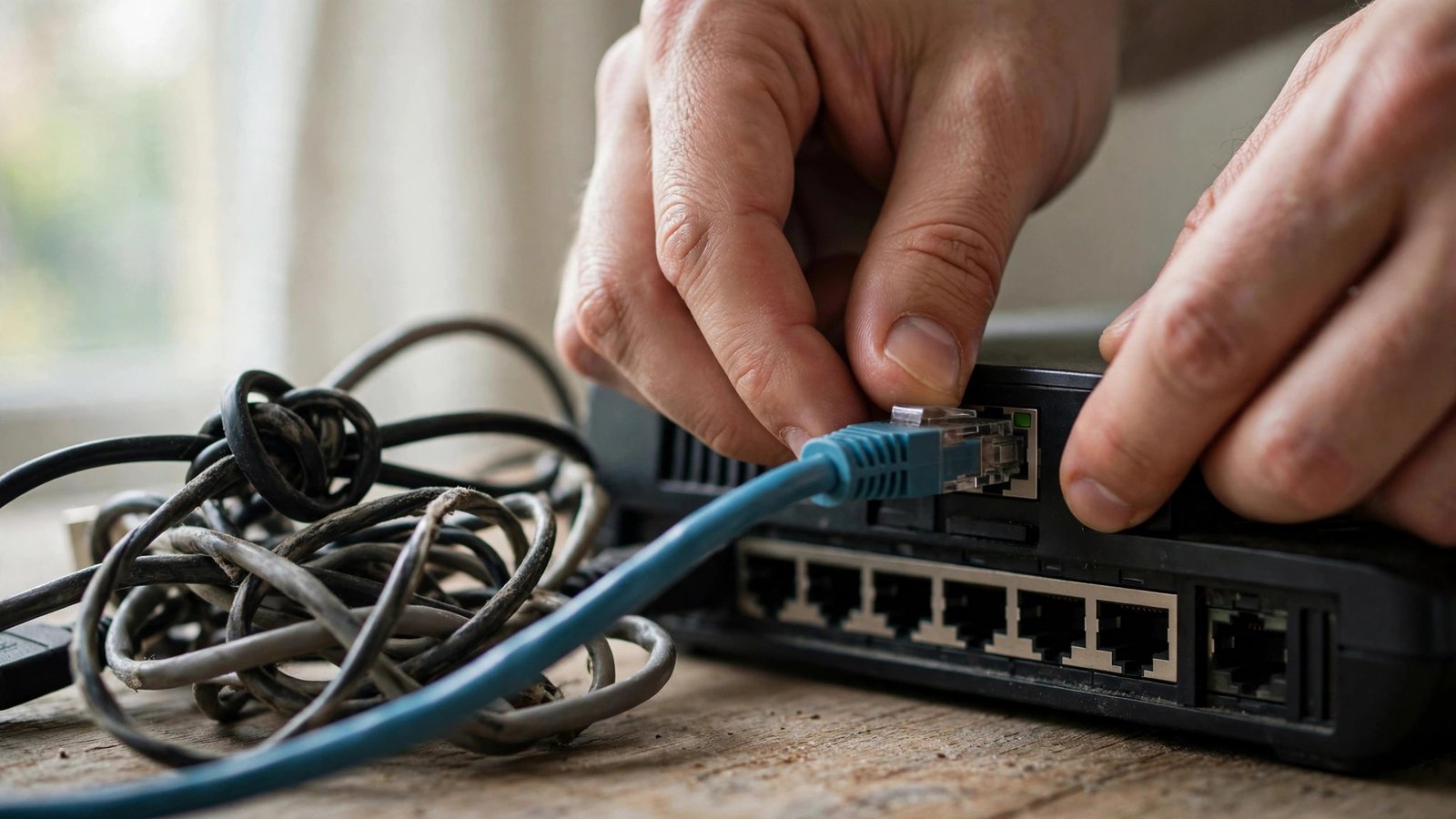
Cables feeding your router degrade over time, and a frayed coaxial cable or ancient Ethernet cord can throttle your network. Inspect the cable from the wall to your modem for kinks, chew marks, or loose connectors. Swap any suspect cable; replacements cost just a few dollars.
If you use your own modem, make sure it supports your plan’s speed, because an old modem caps you far below what you pay for. My friend paid for 500 Mbps for a year while an ancient modem limited him to 100. A new cable or modem can deliver speed you already own.
12. Why Is My WiFi So Slow All of a Sudden? Time to Call Your ISP
When every fix here fails, the problem lives outside your walls: a degraded line, a failing modem they supplied, or secret throttling. Call your provider, describe exactly what you tried, and ask them to run a line test. Mentioning your troubleshooting steps gets you past the script faster.
Ask specifically if your modem needs replacing and whether your plan still matches your usage. Be polite but firm, and request a technician visit if the line test shows issues. I got a free modem upgrade and a month of credit from one such call, so it is always worth trying.
FAQs
Why is my wifi so slow all of a sudden on just one device?
When only one device crawls, the network is fine and that device is the problem. Check for background updates, malware, or a weak Wi-Fi adapter on that specific device. Restart it, forget and rejoin the network, and update its wireless drivers. This isolates the issue fast.
How can I test my real internet speed?
Use speedtest.net or fast.com with only one device connected and standing near the router. Compare the result to the speed your plan promises. Test at different times of day, because evening congestion slows many cable connections. Wired tests with an Ethernet cable show your true maximum.
Does restarting the router really help?
Anyone asking why is my wifi so slow all of a sudden should try this first. Restarting clears the router’s memory, drops glitched connections, and re-establishes a clean link. It fixes a surprising share of sudden slowdowns. If you restart more than once a week, though, the router itself is probably failing.
Can too many devices slow down Wi-Fi?
Absolutely. Every connected device shares your bandwidth, and smart home gadgets add up fast. A dozen cameras, speakers, and plugs plus phones and laptops can choke a basic router. If your device count keeps growing, consider a mesh Wi-Fi system built for busy households.
Should I upgrade my internet plan or my router first?
Before wondering why is my wifi so slow all of a sudden, check hardware age. Upgrade the router first if yours is more than five years old, because an old router cannot deliver the speed you pay for. Only upgrade your plan after a wired test confirms you max out the connection.
Conclusion
Sudden Wi-Fi slowdowns feel mysterious, but they almost always trace back to something on this list. Work through the fixes in order and you will usually find the culprit within twenty minutes. What was slowing yours down?