
Is public wifi safe? I used to connect to any network with a clever name and never think twice. Then a friend showed me how easily someone on the same coffee shop network can snoop on unprotected traffic, and I changed my habits that day. The truth is less scary than the headlines but more serious than most people assume. These 10 rules keep you protected without making you paranoid.
1. Stick to Networks You Can Verify
Not every network named “CoffeeShop_WiFi” belongs to the coffee shop, and fake hotspots are the oldest trick in the book. Always ask staff for the exact network name before you connect. It takes ten seconds and it defeats the most common public Wi-Fi attack completely.
If there are two similar names and you are not sure which is real, do not guess. Use your phone data instead until you can confirm. Attackers count on you picking the stronger signal without thinking.

2. Turn Off Auto-Join for Open Networks
Your phone’s habit of auto-joining any open network is convenient and quietly dangerous. It will happily connect to an attacker’s hotspot named “Free_Airport_WiFi” while your phone sits in your pocket. Go into your Wi-Fi settings and switch off auto-join, or at least disable it for networks without passwords.
While you are there, turn on “Ask to Join Networks” if your phone offers it. A tiny bit of friction is the price of safety here. I made this change years ago and I have never once missed the auto-connect.
3. Is Public WiFi Safe for Banking: Treat It Like It Is Not
If you are wondering is public wifi safe enough for checking your bank balance, the honest answer is to just not do it. Banks use encryption, but one compromised network plus one moment of carelessness is all it takes. Wait until you are home or on mobile data for anything involving money.
The same goes for tax sites, investment accounts, and anything with your Social Security number. If it absolutely cannot wait, use your phone’s hotspot instead of the public network. Your data plan is boring and safe, which is exactly what money stuff needs.
4. Look for the Padlock, Every Time
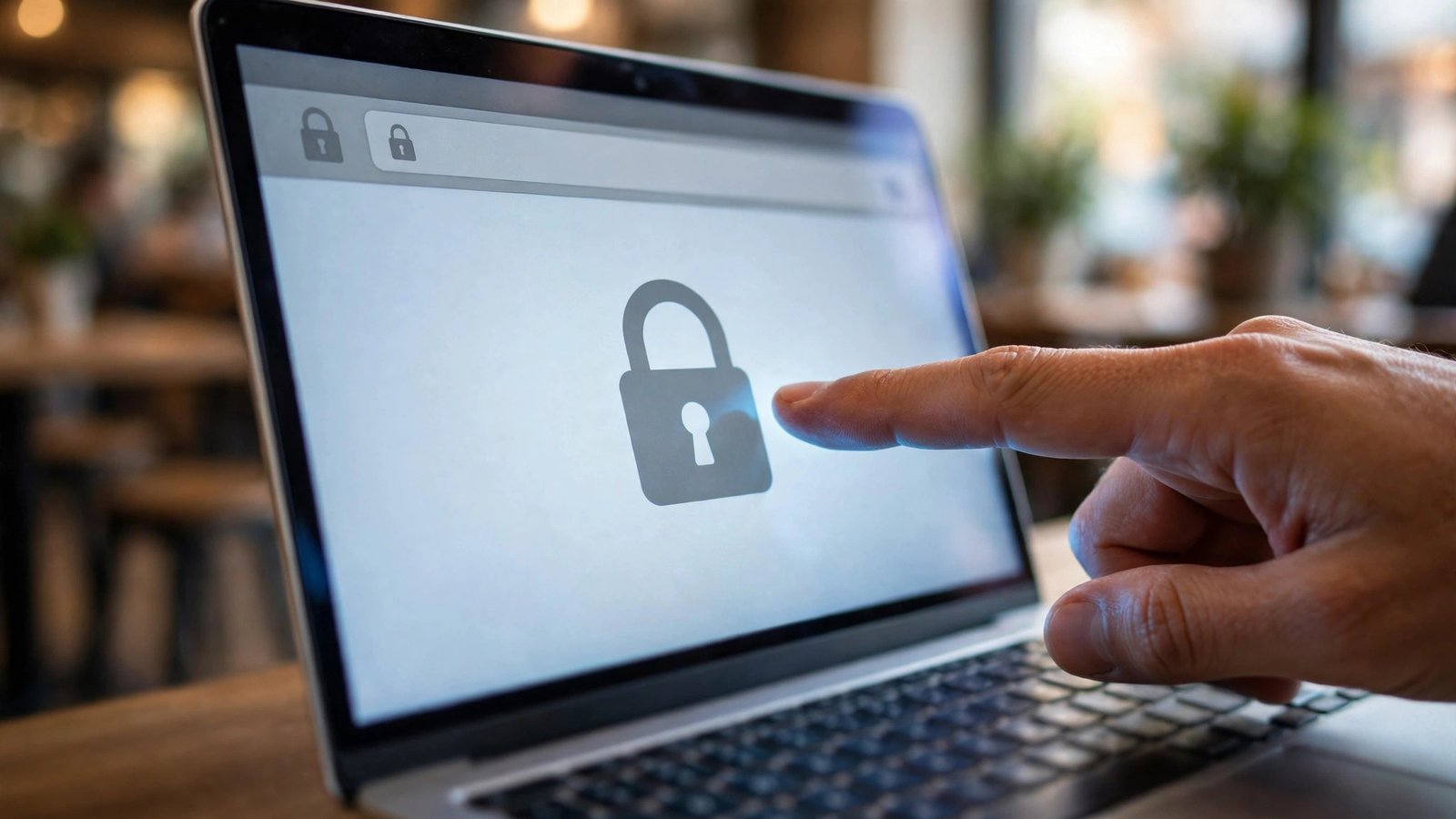
That little padlock in your browser’s address bar means the connection is encrypted, and on public Wi-Fi it is non-negotiable. If a site shows “Not Secure” or the padlock is missing, do not type anything into it, especially not a password. Close the tab and move on.
Most big sites use HTTPS by default now, which helps a lot. But smaller forums, old blogs, and hotel login pages sometimes do not. Make the padlock check a reflex, like looking both ways before crossing a street.
5. Use Your Phone’s Hotspot Instead
A personal hotspot is a private network with a password, which makes it dramatically safer than any public Wi-Fi. If you need to do anything sensitive, toggle the hotspot on and connect your laptop to it. It uses your mobile data, but for important tasks the cost is worth it.
Keep the hotspot password strong and do not share it with the whole coffee shop. Turn the hotspot off when you are done so it is not broadcasting. I do all my banking this way when I travel, and it takes ten seconds to set up.
6. Keep Your VPN On When It Matters
A VPN wraps all your traffic in encryption, which answers the “is public wifi safe” question with a confident yes for everything you do through it. If you have one, turn it on before you connect to any public network. It is the closest thing to a seatbelt for public Wi-Fi.
You do not need the most expensive VPN on the market; any reputable one with a no-logs policy does the job. Free VPNs often sell your data, which defeats the entire purpose, so skip those. I pay for one and use it every single travel day.
7. Turn Off Sharing and AirDrop in Public
File sharing and AirDrop are wonderful at home and wide open doors on public networks. On Windows, set the network profile to Public, which locks sharing down; on Mac, turn off File Sharing in Settings. It takes twenty seconds and closes a real hole.
Set AirDrop to Contacts Only or turn receiving off entirely while you are out. Strangers have used open AirDrop to send junk to everyone nearby. This is one of those settings you change once and never think about again.
8. Forget the Network When You Leave
Every network your phone joins gets remembered, and it will happily reconnect to an attacker’s copycat later. After you leave the coffee shop, go into Wi-Fi settings and tap Forget on that network. It is two taps and it removes the risk entirely.
This matters most for networks with generic names like “Guest” or “Free WiFi,” because anyone can recreate those anywhere. A forgotten network cannot betray you. Make it a habit, like locking your car.
9. Update Your Devices Before You Travel
Updates patch the exact security holes attackers exploit on public networks, so install them before you leave home. That pending OS update you keep snoozing is a known vulnerability with your name on it. Update on your safe home network, not the airport one.
Turn on automatic updates so this happens without your input. Your apps need updates too, especially your browser. An updated device on public Wi-Fi is a much harder target than one running last year’s software.
10. When in Doubt, Use Mobile Data
Here is the simplest rule of all: if something feels off about a network, switch to mobile data and stop thinking about it. Your cellular connection is encrypted and far harder to snoop on than any public Wi-Fi. A few megabytes of data is a small price for peace of mind.
This is my default for anything sensitive when I travel. Public Wi-Fi is for casual browsing; mobile data is for everything else. When you stop and ask yourself is public wifi safe right now, that hesitation is your answer.
FAQs
Is public wifi safe to use at all?
Yes, for casual browsing, as long as you follow basic precautions like verifying the network name and sticking to HTTPS sites. The real danger is sensitive activities like banking or entering passwords on unverified networks. Treat public Wi-Fi as “safe enough for reading, not for secrets” and you will be fine.
Can someone see what I’m doing on public wifi?
On an unencrypted connection, yes, someone on the same network can potentially see the sites you visit. With HTTPS, they see which sites you visit but not what you type or read on them. A VPN hides even that. This is why the padlock and VPN rules above matter so much.
Should I use a VPN on public wifi?
If you have one, absolutely. A VPN encrypts everything between your device and the internet, which neutralizes the main risks of public networks. It is the single highest-impact step on this list. Just avoid free VPNs, since many of them make money from your data instead of protecting it.
Is hotel wifi safe?
Hotel Wi-Fi is just public Wi-Fi with a fancier lobby, so apply every rule here. The login portals hotels use are often unencrypted, and hundreds of strangers share the network. Use your hotspot or VPN for anything beyond casual browsing, and forget the network at checkout.
What should I do if I already entered a password on unsafe wifi?
Change that password immediately from a safe network, and change it anywhere else you reused it. Turn on two-factor authentication for the account if you have not already. Then watch for strange login alerts over the next few weeks. Quick action here prevents almost all real damage.
Conclusion
Public Wi-Fi does not have to be scary, it just demands a little respect. Verify the network, watch for the padlock, and keep a VPN or hotspot handy. Start with the auto-join setting today and build from there.