Learning how to protect your privacy on social media hit home for me the day a coworker I barely knew mentioned my weekend plans. I had posted them for friends, but my settings had made them public.
That was the last time I left my privacy on autopilot. These 11 simple steps put you back in control, and most of them take under five minutes.
1. Protect Your Privacy on Social Media by Locking Down Your Profile
Start by making your profile visible to friends only, not the whole internet. On every major platform, this lives in Settings under Privacy. Switch your posts, photos, and friends list to friends only, and turn off the option that lets search engines link to your profile.
This single change is the foundation of everything else in this article. Strangers can no longer browse your life, and your posts stay inside your circle. The audience setting is the first thing I check on any new account, and it should be yours too.
2. Review Who Can See Your Old Posts
Your old posts may still be public even after you change your settings, because the new setting only covers future posts. Most platforms offer a tool to limit past posts to friends in one tap. On Facebook it is called Limit Past Posts, and it takes seconds.
Scroll back through a few years of your own timeline and look at it with fresh eyes. Anything embarrassing or personal can be deleted or set to friends only. Your history deserves the same privacy as your new posts.
3. Turn Off Location Tagging
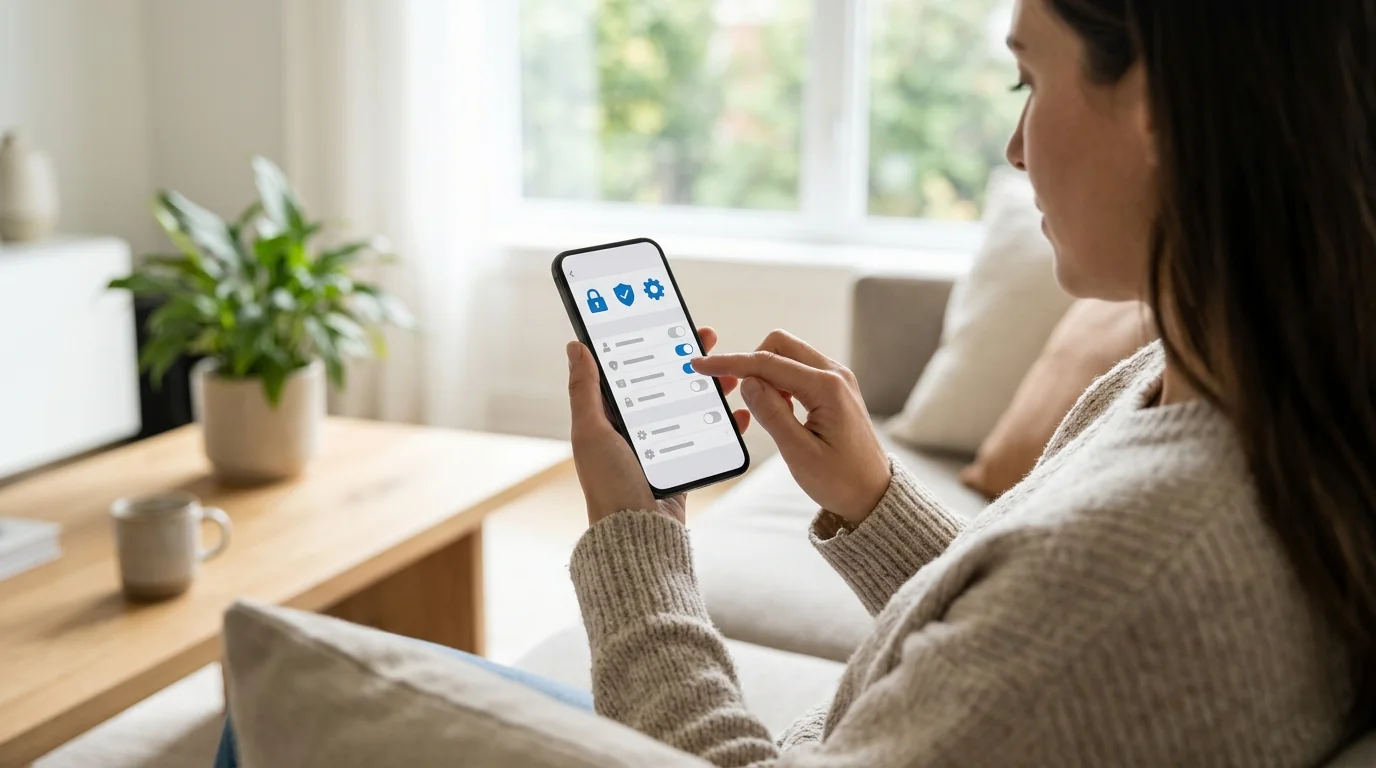
Every photo and post can carry a hidden location tag that tells the world exactly where you were. Turn off location access for your social apps in your phone settings, and never tag your home or workplace. A photo of your coffee can reveal your daily routine.
Wait until you have left a place before posting about it, especially on holiday. Posting live from a hotel tells burglars your house is empty. Your location is private information, even when the photo looks harmless.
4. Think Before You Post Photos of Other People
Your friends and family did not agree to be in your feed just because they stood next to you. Ask before posting photos of other people, especially children. What feels like a fun memory to you might feel like exposure to them.
The same rule applies to screenshots of private messages. If someone sent it to you privately, keep it private. Respecting other people’s boundaries is part of protecting your own privacy too.
5. Audit Your Third-Party App Connections
Over the years you have probably let dozens of apps and games connect to your social accounts. Each one can read some of your data, even if you stopped using it years ago. Open Settings, then Apps and Websites, and remove everything you do not recognize or no longer use.
I once found a quiz app from years ago still connected to my account, quietly reading my profile. Revoking access takes one tap per app. Do this audit every few months and your data stays with the apps you actually trust.
6. Use a Strong, Unique Password
A password you reuse everywhere is a master key for hackers. If one site leaks it, every account using it is open. Give each social account its own long password, and let a password manager remember them for you.
A good password is long and random, not a clever word with a number at the end. My approach is simple: the password manager creates them and I never have to remember one. A unique password for each account is the cheapest security upgrade there is.
7. Turn On Two-Factor Authentication
Two-factor authentication means a stolen password is not enough to get into your account. After your password, the app asks for a code from your phone or an authenticator app. Turn it on for every social account you own.
An authenticator app is safer than codes by text message, because texts can be intercepted. It takes five minutes to set up and then runs quietly in the background. This one step stops most account takeovers cold.
8. Limit What Advertisers Know About You
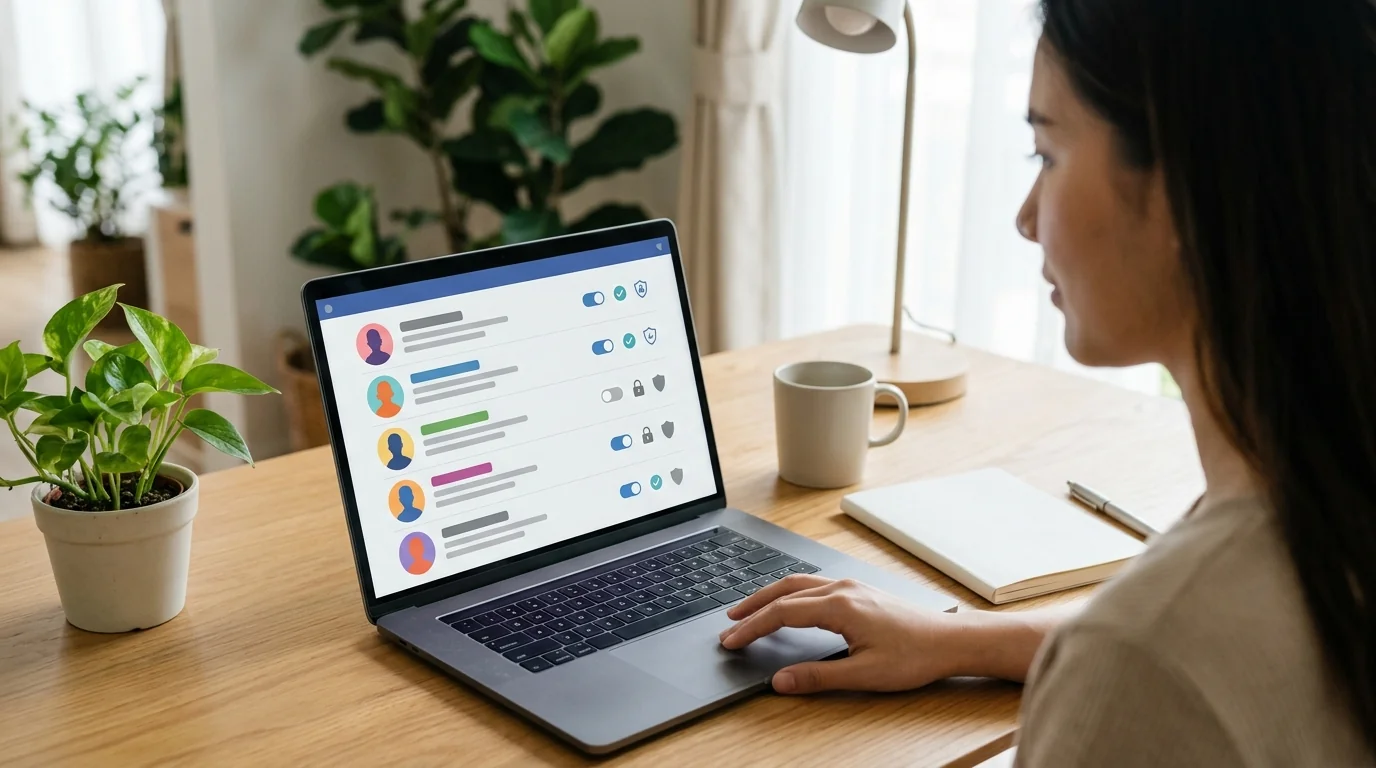
Social platforms build a detailed profile of your interests to sell ads, and you can see and trim it. Look for Ad Preferences or Ad Settings in your account and remove interests you do not want tracked. You can also turn off ads based on your activity on other websites.
You will still see ads, but they will be less personal. I clear my ad interests every few months, and the ads get noticeably more generic. Your interests are yours to share or withhold.
9. Clean Up Your Friends and Followers List
Every person on your friends list can see your friends-only posts, so the list itself is a privacy setting. Scroll through it and remove people you do not know, accounts that look fake, and old contacts you no longer trust. It feels harsh, but your feed is not a public square.
I do this once a year and usually remove a handful of names. Fewer eyes on your posts means fewer chances for a screenshot to travel. A smaller, trusted circle makes social media feel social again.
10. Be Careful With Quizzes and Games
Those fun quizzes asking for your first pet’s name or your mother’s maiden name are collecting security answers. Hackers use the answers to reset your passwords. Never fill in a quiz with real personal details.
The same goes for games that ask for access to your profile before you can play. If a game wants your friends list and your photos, it is not a game, it is a data harvest. Fun is never worth handing over your identity.
11. Check Your Privacy Settings Every Few Months
Platforms change their settings often, and updates can quietly reset your choices. Put a reminder in your calendar to review your privacy settings every three months. A five-minute check keeps your settings the way you left them.
Privacy is a habit, not a one-time fix. A quick seasonal checkup keeps you in control all year.
FAQs
Can people see my social media if my profile is private?
Only your approved friends and followers can see a private profile’s posts and photos. Your profile picture and username usually stay visible to everyone. Some platforms also show your name in search results, so check the search visibility setting too.
Is it safe to log in with Facebook or Google on other sites?
It is convenient, but it links your accounts together and shares some of your profile data with that site. For sites you use often, it is usually fine. For a random site you will visit once, create a separate account or skip the login entirely.
How do I stop social media apps from tracking my location?
Open your phone settings, find the app, and set location access to Never or While Using. Then turn off location tagging inside the app itself. Remember that photos you upload can still carry location data unless you strip it first.
What should I do if my account gets hacked?
Change your password immediately from a device you trust, then turn on two-factor authentication. Check your account for changes to your email address or phone number, and warn your friends not to click links from you. Report the hack to the platform if you cannot get back in.
Are private messages really private?
Messages are visible to the platform itself, and the other person can screenshot them. End-to-end encrypted chats are the exception, because only you and the recipient can read them. Treat every message as something that could one day be shared.
Conclusion
That is the full privacy playbook: locked profile, strong passwords, and a regular checkup. Your social life should be yours to share on your terms. When did you last check your privacy settings?